Unlocking the cinematic potential of 4K Blu Rays isn’t just for tech wizards or film buffs—it’s for anyone who craves a home theater experience that rivals the big screen. Imagine watching your favorite films in stunning Ultra HD, with every detail popping off the screen, vibrant and lifelike. But here’s the catch: those precious 4K Blu Rays you own? They’re delicate. A single scratch, and that jaw-dropping resolution is lost forever. The solution? Rip your 4K Blu Rays, and keep that pristine quality at your fingertips, always.
In this guide, we’re diving deep into the art and science of ripping 4K Blu Rays—transforming you into a master of your digital domain. From the essential tools to the pro tips that will save you time and headaches, this isn’t just another how-to. This is your blueprint for preserving and enjoying your 4K collection like never before. Ready to take your movie-watching experience to the next level? Let’s get started.
Your Journey To UHD 4K Ripping Starts Here
Welcome to the World of 4K: Why Ripping 4K Blu Rays is Worth It
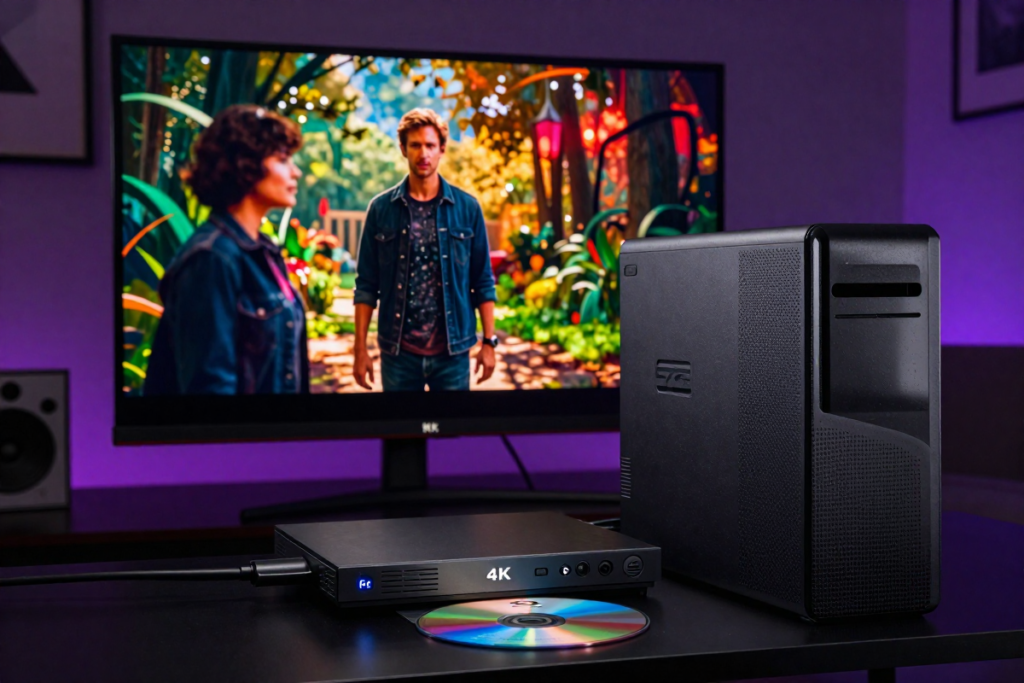
The allure of 4K Blu Ray is undeniable. Imagine being immersed in rich, textured colors, every scene bursting with clarity that feels almost tangible. 4K isn’t just about watching a movie; it’s about experiencing it, becoming part of the story. But, owning a 4K Blu Ray collection has its challenges. Those stunning visuals are housed on delicate discs that can easily be damaged, lost, or rendered obsolete by new technology. That’s where ripping comes in. By converting your physical discs into digital files, you’re not just preserving that breathtaking quality; you’re safeguarding your collection for the future. No more worrying about scratches or misplacing a disc. Your 4K movies will be right there on your hard drive, ready to transport you into their vivid worlds anytime.
The Legal Side of Ripping: What You Need to Know Before You Start
Before diving into the world of 4K Blu Ray ripping, it’s crucial to understand the legal landscape. Ripping your own Blu Rays for personal use—like backups or storing them on your media server—is generally legal in many places, but it’s not without grey areas. The key is “personal use.” Selling, sharing, or distributing those ripped files? That’s where the law draws the line. Blu Ray copy protection measures, built into Blu Ray discs, complicate things further. Circumventing these protections can be legally questionable, depending on where you live. To stay on the right side of the law, stick to ripping your purchased discs and keep those digital files strictly for personal enjoyment. Understanding the rules ensures you can enjoy your 4K collection without unwanted legal surprises.
Essential Tools: What You’ll Need to Rip 4K UHD Blu Ray Discs Like a Pro
Ripping 4K Blu Rays isn’t just about having the right software—it’s about having the right tools across the board. First, you’ll need a 4K Blu Ray drive that can read the discs. Not all drives are created equal, so investing in a reliable one is essential. Next is the best ripping software. This is the powerhouse that extracts the content from your disc and converts it into a digital format. Paid programs are known for failure during ripping due to the nature of 4K. Most users have found the combination of a good 4K blu ray drive and MakeMKV free software gets the job done. Don’t forget storage. Ripping 4K content produces large file sizes, so having ample space—whether on an external hard drive or a network-attached storage (NAS) system—is crucial. Finally, a robust computer with decent processing power will make the process smoother and faster. Armed with these tools, you’ll be well on your way to building a digital 4K movie library that’s as versatile as it is visually stunning.
With the right knowledge, tools, and a bit of patience, ripping your 4K Blu Rays can elevate your movie-watching experience. The journey to mastering this skill starts with understanding why it’s worth it, staying on the right side of the law, and equipping yourself with the necessary tools. Once you’ve got that down, the rest is just pressing play.
Understanding the Basics
What is 4K Blu Ray? Breaking Down the Technology
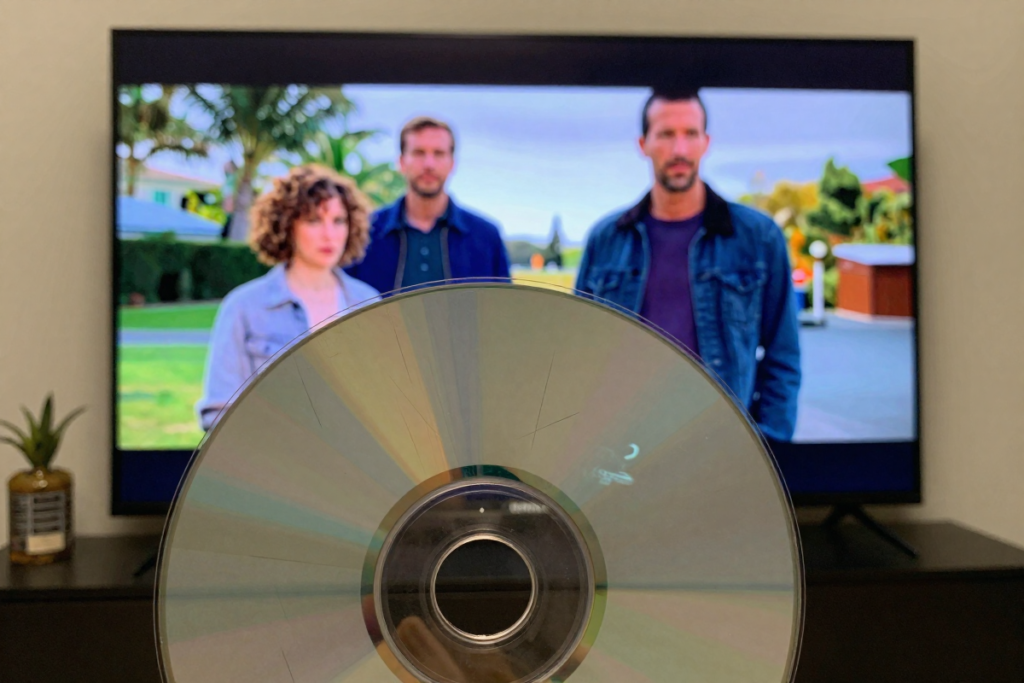
4K Blu Ray represents the pinnacle of home entertainment, offering a resolution of 3840 x 2160 pixels—four times that of Full HD. This translates to incredible detail, depth, and sharpness in every frame. But it’s not just about resolution. 4K Blu Ray discs also support High Dynamic Range (HDR), enhancing color range and contrast, which brings richer colors and more detail to bright and dark scenes alike. When you play a 4K Blu Ray, you’re unlocking the full potential of your home theater, experiencing movies as they were intended.
Beyond visuals, 4K Blu Ray supports advanced audio formats like Dolby Atmos and DTS:X, delivering immersive, three-dimensional sound. Watching a movie in 4K isn’t just viewing—it’s an experience that engages your senses on multiple levels. This combination of top-tier high-definition video and audio quality is why 4K Blu Rays remain the choice for those who demand the best from their entertainment.
Why Rip 4K Blu Ray Discs? The Benefits of Going Digital
Given the quality of 4K Blu Ray, why rip them? The digital shift offers clear advantages. First and foremost, convenience. With your movies stored digitally, you can access them anytime, anywhere—no need to hunt for a disc. Your entire collection is available with a few clicks.
Ripping also safeguards your investment. Physical discs can scratch, get lost, or degrade over time. By ripping your 4K Blu Rays, you create a digital movie backup that ensures you’ll always have your favorite films available in pristine quality. Going digital also means a streamlined collection—everything in one place, easily searchable and organized.
Flexibility is another perk. Once digital, your movies can be enjoyed on any device—TVs, laptops, tablets, or even smartphones. Whether you’re at home or on the go, your 4K movies are always with you, without sacrificing quality. It’s the best of both worlds: the unbeatable 4K movie quality of Blu Ray with the convenience of digital access.
Common Challenges: What Makes 4K Blu Ray Ripping Tricky?
Ripping 4K Blu Rays, while rewarding, presents challenges. The most significant is **Blu Ray decryption**. 4K Blu Rays come with advanced **Blu Ray copy protection**, requiring software that can bypass these measures—this can sometimes blur legal lines depending on your location.
File size optimization is another hurdle. 4K movies are massive, often taking up 50GB to 100GB per film. Handling these large files requires substantial storage and can strain your computer during the ripping process. Without proper large file handling, you might end up with an unmanageable digital collection.
Compatibility issues also arise. Not all devices or media players support 4K playback, especially with raw, uncompressed files. Ensuring your devices can handle the resolution and formats of your ripped movies is crucial, or you could find yourself unable to fully enjoy your 4K library.
Despite these challenges, with the right tools and knowledge, you can successfully rip and enjoy 4K Blu Rays. The effort is worthwhile, offering you a digital movie library of stunning 4K movies that’s always at your fingertips.
Getting Started: Preparing for Your First Rip
Choosing the Right Software: Top Programs for Ripping 4K Blu Rays
When it comes to ripping 4K Blu Rays, your software choice is critical. Not all programs can handle the intricacies of 4K resolution and the encryption that comes with it. One of the most trusted options is MakeMKV. It’s user-friendly and reliable, capable of decrypting Blu Ray discs and converting them into high-quality MKV files without losing a pixel of detail. Another solid choice is EaseFab, which offers more advanced features and can rip any format.
Hardware Essentials: The Best 4K Blu Ray Drives for Ripping
Your software can only be as good as the hardware behind it. To successfully rip 4K Blu Rays, you need a compatible 4K Blu Ray drive. Not all Blu Ray drives can read 4K discs, so choosing the right one is crucial. The LG WH16NS40 is a popular option among enthusiasts, known for its reliability and compatibility with various ripping software. It’s a workhorse that gets the job done without hiccups.
Another top contender is The ASUS BW-16D1HT, which offers similar performance with a slight edge in speed and durability. Both drives are relatively easy to install and offer consistent performance, ensuring that your ripping process is smooth and error-free. Investing in a quality drive means fewer complications down the road, so it’s worth choosing one that has been tested and recommended by the community.
Storage Solutions: How to Handle Large 4K Files Without Losing Quality
Ripping 4K Blu Rays results in large files—often upwards of 50GB per movie. Handling these massive files requires robust movie storage solutions. External hard drives, like the Western Digital My Passport, offer a balance of storage space and reliability, with options ranging from 4TB to 14TB. This is ideal for those building an extensive digital library.
For more advanced setups, consider a Network Attached Storage (NAS) system like the Synology DiskStation. A NAS not only provides ample storage but also allows you to stream your 4K content to any device on your network, making it perfect for a home media setup. Whichever route you choose, make sure your storage solution is both spacious and reliable, ensuring your 4K collection remains intact and accessible.
Backup Your Originals: The Importance of Keeping Your Discs Safe
Even after you’ve successfully ripped your 4K Blu Rays, it’s essential to keep your original discs safe. They serve as the ultimate backup, ensuring that you can always create a new digital copy if needed. Store them in a cool, dry place, away from direct sunlight and extreme temperatures. Consider investing in a good quality disc storage case to protect them from dust and scratches. By keeping your physical discs in top condition, you ensure that your investment in 4K Blu Rays remains protected and intact.
Backing up your originals isn’t just about safety; it’s about preserving the integrity of your collection. Should anything happen to your digital files, your physical discs are your safeguard, allowing you to rip them again without loss of quality. It’s peace of mind that ensures your 4K movies remain part of your entertainment arsenal for years to come.
Step-by-Step Guide to Ripping 4K Blu Rays
Inserting the Disc: How to Start the Ripping Process
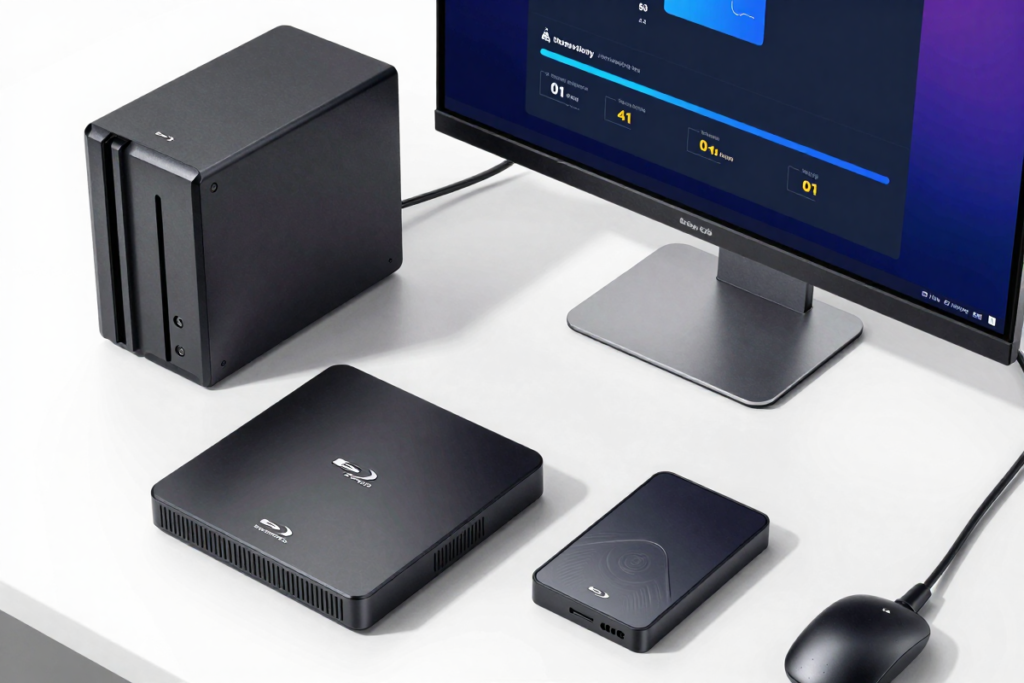
Getting started with ripping your 4K Blu Ray is simpler than you might think. First, ensure your 4K Blu Ray drive is properly connected to your computer. Once that’s set, insert your 4K disc into the drive. Your best ripping software should automatically recognize the disc and prompt you to begin the process. It’s as easy as clicking a button to start.
The software will typically display all available titles on the disc, from the main feature to bonus content. For most users, the main movie is what you’re after. Select it, and you’re ready to move on to the next step. Remember, the software will begin analyzing the disc immediately, so be patient—it’s reading a lot of data to ensure you get the best possible rip.
Selecting the Right Settings: Optimizing Quality and File Size
Choosing the right settings is crucial for balancing quality and file size. Most ripping software offers a range of options, from keeping the file in its original, uncompressed state to compressing it for easier storage. If you have the storage space, opting for an uncompressed or lightly compressed rip will maintain the highest quality, preserving every pixel of that stunning 4K movie quality.
However, if storage is a concern, you can tweak the settings to reduce file size without sacrificing too much quality. This usually involves adjusting the bit rate, resolution, or selecting a more efficient codec like HEVC (H.265). Each adjustment affects both the visual quality and the amount of storage required, so find a balance that works best for your setup.
Dealing with Encryption: How to Bypass Copy Protection Legally
Blu Ray decryption is the main barrier to ripping 4K Blu Rays, designed to prevent unauthorized copying. However, if you’re ripping for personal use, there are legal ways to bypass this. Software like MakeMKV includes built-in decryption features that can handle most Blu Ray copy protection. It’s crucial to use these tools responsibly—ensure you own the disc and are using the rip for personal use only.
Some countries have specific laws regarding decryption, so it’s wise to familiarize yourself with local regulations before proceeding. Following the legal guidelines helps you avoid potential issues and keeps your ripping activities above board.
Ripping Time: How Long Should You Expect to Wait?
Ripping a 4K Blu Ray isn’t instantaneous. The process can take anywhere from 30 minutes to several hours, depending on your computer’s processing power and the settings you’ve chosen. Higher quality settings and larger files naturally take longer to process, so don’t be surprised if a full-length 4K movie takes an hour or more to rip.
While it might be tempting to lower the quality to speed things up, remember that patience pays off. A higher-quality rip will look better on your screen and provide a more immersive viewing experience. The wait is worth it when you see the final result—crisp, clear, and exactly what you hoped for.
Once the rip is complete, you’ll have a digital movie backup ready to be played, stored, or even edited as you see fit. Your movie-watching experience is about to get a whole lot more convenient and enjoyable, with the full power of 4K at your fingertips.
Optimizing Your 4K Files
Choosing the Best Format: MKV, MP4, or Something Else?
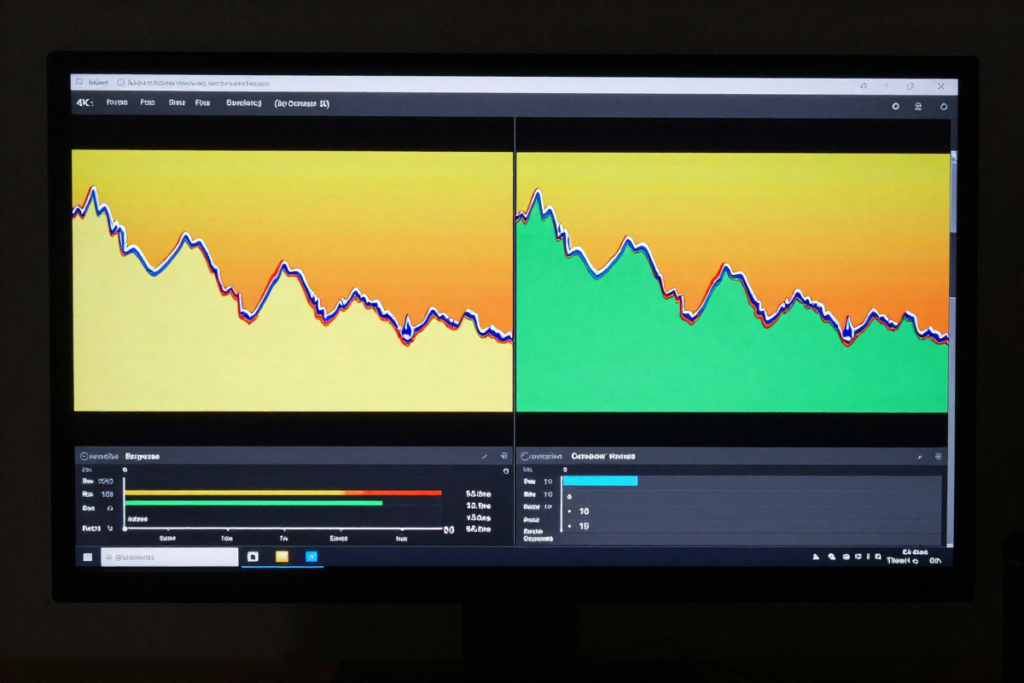
When it comes to digital formats for your ripped 4K Blu Rays, choosing the right one can make a big difference in your viewing experience. MKV (Matroska Video) is a popular choice among enthusiasts. It’s a versatile container format that supports high-quality video and multiple audio tracks, as well as subtitles, without significant loss of quality. It’s especially useful if you want to retain the full range of audio and video options from your original disc.
MP4, on the other hand, is more universally compatible and often preferred for streaming and playback on various devices. It’s a compressed format that maintains a good balance between file size and quality, making it ideal if you’re looking to save space. However, it does have limitations compared to MKV, such as less support for multiple audio tracks or subtitle streams. For most users, MKV is the go-to for maintaining the highest quality, while MP4 is great for compatibility and space-saving.
Compressing Files Without Losing Quality: Tips and Tricks
Compressing your 4K files can significantly reduce their size, but it’s crucial to do so without sacrificing too much quality. One effective method is to use the HEVC (H.265) codec, which is designed to compress video more efficiently than its predecessor, H.264. This codec can halve the file size while preserving most of the original quality, making it ideal for 4K content.
Another trick is to adjust the bit rate settings in your ripping software. Lowering the bit rate reduces the file size but can affect quality, so find a balance that works for you. Two-pass encoding is another technique that helps by analyzing the file twice—once to gather information and again to compress based on that data—resulting in a more optimized file with minimal quality loss.
Finally, consider using a dedicated video compression tool for fine-tuning. Programs like HandBrake offer advanced settings and presets to compress files while retaining high visual fidelity. With these tools, you can achieve a balance between file size and quality, ensuring your movies look great without taking up too much space.
Adding Subtitles and Audio Tracks: Customizing Your 4K Experience
Customizing your ripped 4K movies with additional subtitles and audio tracks enhances your viewing experience. Most ripping software, including MakeMKV and EaseFab, allows you to include multiple audio and subtitle tracks. This feature is especially useful if you want to retain original language tracks, commentary, or subtitles for different languages.
Adding subtitles is straightforward. In your ripping software, simply select the subtitle tracks you want to include during the ripping process. For additional audio tracks, choose the ones that best suit your needs. If you’re using MKV, you can easily add or manage these tracks later with tools like MKVToolNix.
Organizing Your Library: Best Practices for Storing and Accessing Ripped Movies
Once you’ve ripped and customized your 4K movies, organizing your digital movie library efficiently is key. Start by creating a structured folder system on your storage device. Organize by genre, release year, or director—whatever system makes the most sense for you.
Label your files clearly, including movie titles and resolution to make searching easier. Using consistent naming conventions helps in locating specific films quickly. For example, name your files with the format “MovieTitle (Year) [Resolution].ext” to include relevant details.
Consider using media management software to catalog and access your collection. Tools like Plex or Kodi can help organize your files, offer a user-friendly interface, and even stream your content to various devices. By keeping your digital library organized, you ensure easy access to your 4K movies and a streamlined viewing experience.
Troubleshooting and FAQs
Common Errors: What to Do When Your Rip Fails
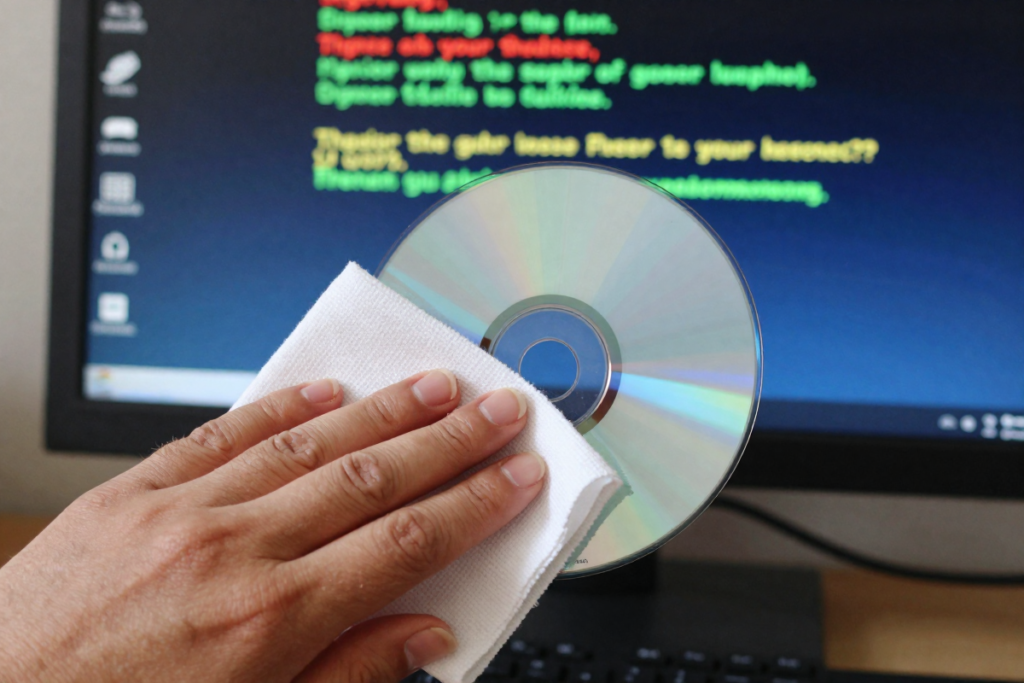
Ripping a 4K Blu Ray can sometimes hit snags. One common issue is the software failing to recognize the disc or encountering errors during the ripping process. If your rip fails, start by ensuring your disc is clean and free of scratches. A dirty or damaged disc can cause read errors. Use a soft cloth to gently clean the disc, wiping from the center outwards.
Another potential problem is outdated software. Ensure your ripping software is up-to-date, as newer versions often include fixes for compatibility issues. If you’re encountering persistent errors, consider trying a different ripping tool that might handle your disc better. Sometimes, switching software can bypass glitches that your current tool can’t resolve.
How to Handle Audio Sync Issues in Ripped 4K Files
Audio sync problems can be frustrating, but they’re manageable with a few troubleshooting steps. If you notice that the audio and video are out of sync, it could be due to a problem during the ripping process or with the playback software.
First, check if the issue persists across different media players. Sometimes, playback software can cause sync issues, and switching to another player, like VLC Media Player, can resolve the problem. If the sync issue remains, try re-ripping the disc with different settings or software, as this might correct the error.
For more advanced fixes, use video editing software like Avidemux or MKVToolNix. These tools allow you to adjust audio and video tracks separately and realign them if necessary. It might take a bit of time, but these adjustments can ensure that your ripped 4K files play perfectly in sync.
Dealing with Large File Sizes: When Storage Becomes a Problem
Handling large file sizes is one of the main challenges of ripping 4K Blu Rays. If you’re running out of storage space, consider compressing your files to reduce their size. Using the HEVC (H.265) codec, as mentioned earlier, can significantly shrink file sizes while maintaining high quality.
Alternatively, you can also opt for a multi-tier storage solution. Invest in additional external hard drives or a NAS system to expand your storage capacity. A NAS system, in particular, not only provides more space but also allows for easier access and streaming across multiple devices.
If you’re still facing storage issues, it might be worth revisiting your file organization. Remove any unnecessary files or duplicates to free up space. Managing your storage efficiently ensures that you can continue enjoying your
FAQ: Answers to the Most Common Questions About Ripping 4K Blu Rays
Q: Is it legal to rip 4K Blu Rays?
A: Ripping 4K Blu Rays for personal use is generally considered legal in many countries, provided you own the disc and are not distributing the content. However, laws vary by location, so it’s essential to check local regulations.
Q: What should I do if my software can’t bypass encryption?
A: If your software can’t handle encryption, try updating it to the latest version or use a different ripping tool known for its decryption capabilities. Some tools are better equipped to handle specific **Blu Ray copy protection** methods.
Q: How can I reduce the size of my 4K files without losing quality?
A: Use the HEVC (H.265) codec for efficient compression, adjust bit rates, and consider two-pass encoding. These techniques can help reduce file size while preserving quality.
Q: My ripped file has no subtitles. How do I add them?
A: Use tools like MKVToolNix or HandBrake to add **subtitles** to your ripped files. These programs allow you to include and synchronize subtitle tracks with your movie.
Q: How can I prevent my files from getting corrupted?
A: Ensure your storage devices are reliable and avoid abrupt disconnections during the ripping process. Regularly back up your files to prevent loss from hardware failure or corruption.
With these tips and solutions, you’re well-equipped to handle common issues and enjoy a seamless ripping experience. Whether you’re troubleshooting errors or managing large files, staying informed helps keep your 4K Blu Ray collection in top shape
Some Final Thoughts Before Ripping UHD 4K Movies
Enjoy Your 4K Collection Anywhere: Final Thoughts on Ripping Like a Pro
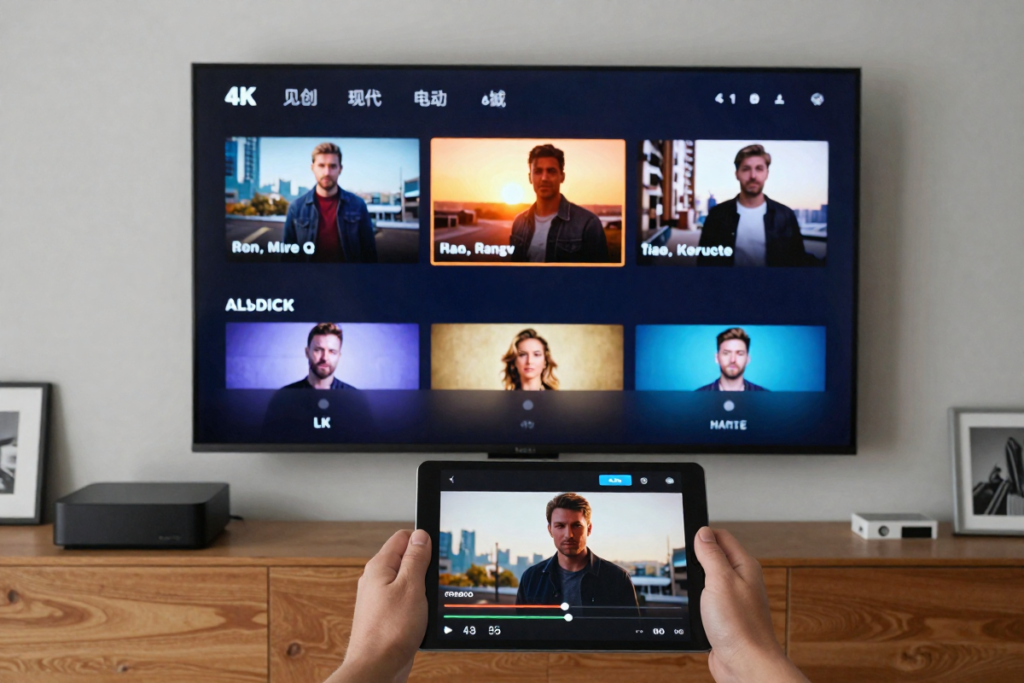
Congratulations! You’ve successfully navigated the world of ripping 4K Blu Rays like a true pro. Now that you’ve mastered the art of converting those high-definition discs into digital treasures, it’s time to revel in the fruits of your labor. Imagine accessing your entire 4K movie collection from the comfort of your couch, without the hassle of switching discs or worrying about scratched surfaces. The digital freedom you’ve achieved opens up a new realm of convenience and enjoyment.
With your 4K files safely stored and beautifully organized, you can enjoy cinematic masterpieces in stunning detail, anywhere and anytime. Whether you’re streaming to your home media setup or watching on a portable device, the quality and accessibility of your collection are unparalleled. It’s a game-changer for movie lovers and collectors alike.
Next Steps: How to Keep Your 4K Library Up to Date and Organized
Maintaining your 4K library is an ongoing process. To keep your collection fresh and manageable, start by implementing a regular update routine. As new movies and series become available, rip them and add them to your library promptly. Keeping up with the latest releases ensures your collection stays current and impressive.
Organizing your files efficiently is equally important. Regularly review and update your folder structures to accommodate new additions. Use descriptive file names and metadata to make searching and sorting easy. Consider using media management software to catalog and streamline access to your movies. Programs like Plex or Kodi can automatically organize and display your collection in an intuitive interface, enhancing your viewing experience.
Final Words and Share Your Experience
As you wrap up your 4K ripping journey, it’s time to reflect on what worked best for you and share your experiences with others. Your feedback can provide valuable insights to fellow movie enthusiasts. Did a particular software or hardware make the process smoother? Were there any tips or tricks that stood out?
Leave a comment below about your experience—what challenges you faced, what solutions you found, and any advice you’d offer to newcomers. Your input helps build a community of informed and engaged movie lovers, making the journey easier for everyone.
Embrace the freedom and flexibility of your digital 4K collection. With your new skills, the world of high-definition movies is at your fingertips, ready to deliver hours of visual splendor and entertainment. Enjoy the journey and happy viewing!
ITEM CHECKLIST
DISC DRIVE
LG WH16NS40
ASUS BW-16D1HT
RIPPING SOFTWARE
MakeMKV
EaseFab
FILE STORAGE
Western Digital My Passport
Synology DiskStation
MEDIA MANAGEMENT/SERVER
Kodi
Plex
media management software
HELPFUL TOOLS
HEVC (H.265)
HandBrake
MKVToolNix
Avidemux
Affiliate Disclosure
This post contains affiliate links to some of the platforms and services mentioned. If you choose to make a purchase through these links, we may earn a small commission. This helps support the blog and allows us to continue providing valuable content. Rest assured, our recommendations are based on genuine research and are intended to help you find the best options for ripping 4K discs. Thank you for your support and trust in our recommendations.