Imagine transforming your living room into a state-of-the-art cinema, where every pixel pops and every sound resonates with crystal clarity. With the surge in 4K Blu-Ray technology, you’re on the brink of an extraordinary home theater experience. Yet, the process of ripping these high-definition gems to Plex might seem like navigating a labyrinth of technical jargon and complicated settings. Fear not! This guide unveils the secrets to effortlessly ripping 4K Blu-Rays for Plex, turning daunting tasks into seamless steps. From selecting the right tools to optimizing your files for pristine playback, you’ll discover how to elevate your streaming setup with finesse. Whether you’re a tech novice or a seasoned streamer, prepare to unlock the full potential of your 4K collection and enjoy the ultimate movie-watching adventure. Ready to dive into the world of superior streaming? Let’s get started!
The How And The Why To Ripping 4K For Plex
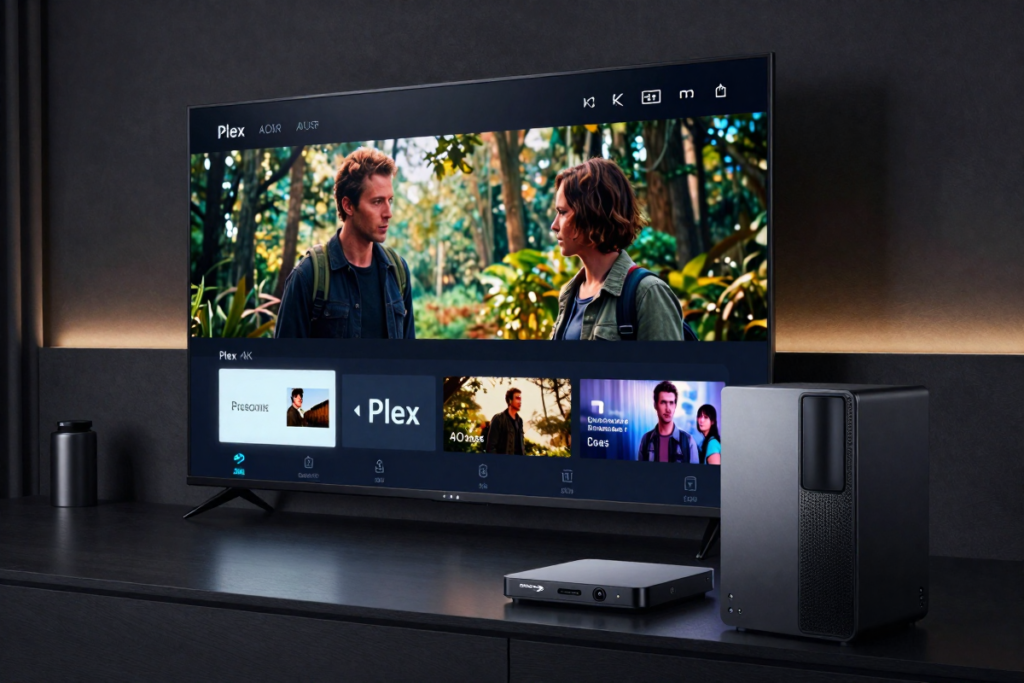
Why Rip 4K Blu-Rays for Plex?
In the digital age, the allure of 4K Blu-Rays is undeniable. They deliver unparalleled clarity and detail, offering an immersive cinematic experience that’s hard to match. But why bother with 4K Blu-Ray ripping for Plex, especially when physical media is slowly giving way to streaming services?
Firstly, ripping 4K Blu-Rays allows you to harness the full potential of Plex media server, transforming it into a powerhouse for high-definition movie streaming. Plex is designed to organize and stream your media with ease, providing you with instant access to your favorite films without the need to switch discs or manage cluttered shelves. By ripping your 4K Blu-Rays, you’re not just preserving the quality of your collection; you’re also making it more accessible.
Moreover, the convenience factor is significant. Imagine having your entire Blu-Ray collection at your fingertips, ready to stream at any time. You’re no longer tied to physical discs or restricted by the limitations of your Blu-Ray player. Instead, your movies are seamlessly integrated into your Plex library, accessible from any device in your home. This shift to a digital format ensures that your 4K Blu-Rays are not just protected from physical damage but are also optimized for modern viewing experiences through 4K video encoding.
Benefits of High-Quality Movie Streaming
High-quality movie streaming isn’t just about the latest technological trends—it’s about enhancing your overall viewing pleasure. When you rip your 4K Blu-Rays and stream them through Plex, you’re investing in a superior entertainment experience.
The primary benefit is, of course, the stunning picture and sound quality. 4K Blu-Rays are renowned for their exceptional resolution and vibrant colors, which far exceed what’s typically available through standard streaming services. By ripping and streaming these discs, you maintain that extraordinary level of quality right in your home. It’s not just about seeing more detail; it’s about experiencing 4K resolution conversion and feeling like you’re part of the scene.
Additionally, high-quality streaming through Plex offers unparalleled flexibility. With Plex, you can customize your viewing experience to suit your preferences. Whether it’s adjusting the audio settings for an immersive surround sound effect or organizing your movie library with personalized metadata, Plex media organization puts you in control. You’re not confined by the limitations of physical media or the often inconsistent quality of online streaming.
Another advantage is the preservation of your collection. Physical discs are vulnerable to scratches, loss, and damage. By ripping your 4K Blu-Rays, you’re safeguarding your investment and ensuring that your movies remain in pristine condition for years to come. This digital backup not only protects against physical wear and tear but also allows for easy replication and sharing within your household.
In essence, ripping 4K Blu-Rays for Plex combines the best of both worlds: the superior quality of physical media and the convenience of digital streaming. It’s a smart, forward-thinking approach to modern home entertainment, offering both enhanced viewing pleasure and practical benefits. Embrace this transformation and enjoy a movie experience that’s as captivating as it is convenient.
Getting Started: Essential Tools and Software
Embarking on the journey of ripping 4K Blu-Rays for Plex requires the right arsenal of tools and software. Choosing the best solutions can make a world of difference, ensuring that your high-definition movies are preserved with pristine quality.
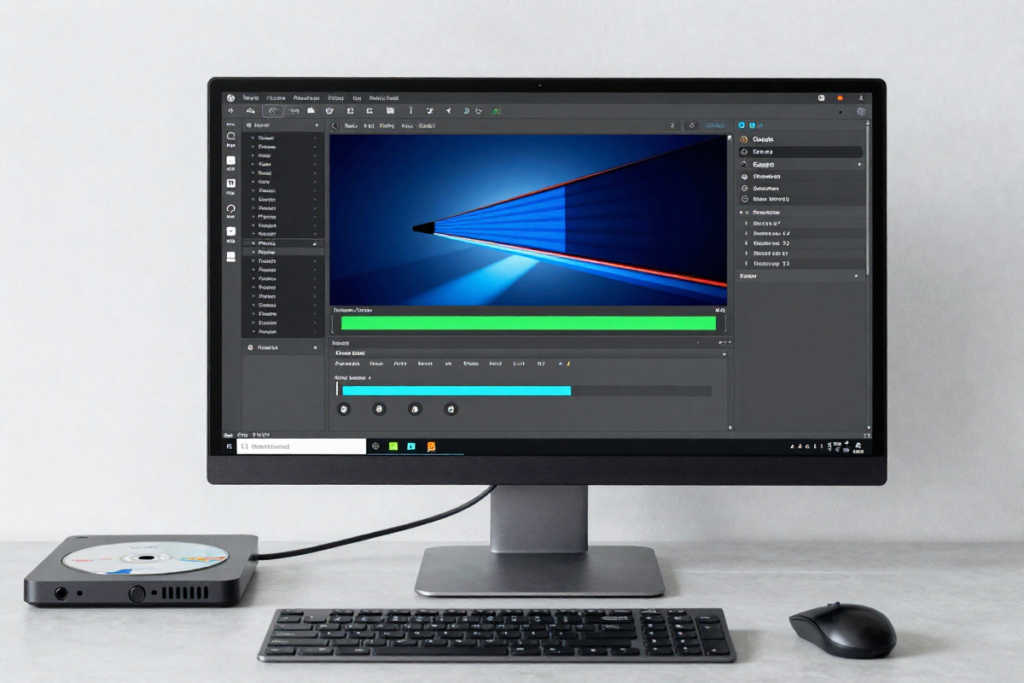
Best Software for 4K Blu-Ray Ripping
The software you choose will be the linchpin in your Blu-Ray ripping operation. Opt for applications known for their efficiency and reliability. MakeMKV stands out as a premier choice. It offers a straightforward interface and robust performance, capable of handling the complexities of 4K Blu-Ray encryption and converting your discs into high-quality MKV files. This format retains all the essential data, including multiple audio tracks and subtitles, ensuring that nothing is lost in translation.
Another top contender is DVDFab. Renowned for its versatility, DVDFab supports a range of formats and codecs, making it ideal for users who want customization options. Its advanced settings allow you to fine-tune the ripping process, optimizing file sizes and quality according to your preferences. For those who seek a more specialized tool, Leawo Blu-Ray Ripper is worth considering. It provides comprehensive features for ripping and converting, including built-in editing tools to trim and enhance your movies before adding them to Plex.
Recommended Hardware for Optimal Performance
To rip 4K Blu-Rays efficiently, you’ll need hardware that can keep pace with the demands of high-definition media. A high-speed Blu-Ray drive is essential. Look for drives specifically designed for UHD Blu-Ray ripping and playback, as they handle data more swiftly and accurately. Brands like LG and Pioneer offer reliable models that are well-regarded in the industry.
In addition to a quality Blu-Ray drive, a powerful computer is crucial. Ensure your system meets or exceeds the recommended specifications for the ripping software you choose. A multi-core processor, ample RAM (16GB or more), and a dedicated graphics card can significantly speed up the ripping process and handle large 4K files with ease. SSD storage is also highly recommended. Unlike traditional hard drives, SSDs provide faster read and write speeds, which is beneficial when dealing with the substantial data sizes of 4K movies.
External storage solutions are another consideration. Given the size of 4K files, having a reliable and spacious external hard drive can prevent bottlenecks and provide ample space for your growing movie library. Opt for drives with high transfer speeds and good durability to ensure that your collection remains safe and accessible.
By selecting the right software and hardware, you set the stage for a smooth and efficient ripping process. With these tools at your disposal, you’ll be well-equipped to transform your 4K Blu-Rays into a digital format that’s ready to be streamed seamlessly through Plex.
Understanding 4K Blu-Ray Formats and Codecs
To truly appreciate the process of ripping 4K Blu-Rays for Plex, it’s crucial to grasp the intricacies of 4K Blu-Ray formats and the key codecs that define them. This knowledge will help ensure that your ripped files are optimized for the best possible streaming experience.
What is 4K Blu-Ray?
4K Blu-Ray is the pinnacle of physical media technology, delivering a resolution of 3840 x 2160 pixels. This ultra-high-definition format offers four times the resolution of standard 1080p Blu-Rays, resulting in breathtakingly sharp images and vivid colors. The increased resolution and enhanced color depth are made possible by the use of High Dynamic Range (HDR) technology, which provides a wider range of colors and greater contrast. This makes 4K Blu-Rays an exceptional choice for home theaters aiming to replicate the grandeur of cinema.
Beyond just resolution, 4K Blu-Rays often come with advanced audio formats such as Dolby Atmos and DTS, which deliver immersive soundscapes. These audio enhancements complement the visual clarity, creating a more engaging and realistic viewing experience. In essence, 4K Blu-Ray represents the zenith of home media, offering an unparalleled combination of visual and auditory excellence.
Key Codecs and Formats for Plex
When ripping 4K Blu-Rays, understanding codecs and formats is pivotal for ensuring compatibility with Plex media server and preserving the quality of your media. HEVC (High-Efficiency Video Coding), also known as H.265, is the primary codec used for 4K content. This advanced codec offers superior compression, allowing for high-quality video files at reduced sizes. It’s essential for maintaining the pristine quality of 4K video encoding while managing storage space efficiently.
For audio, Dolby TrueHD and DTS-HD Master Audio are the go-to formats. These lossless audio codecs ensure that the rich, cinematic soundtracks of your movies are preserved in their full glory. Plex supports these formats, but it’s crucial to verify compatibility during the ripping process to ensure that the audio experience matches the visual quality.
When it comes to container formats, MKV (Matroska Video) is highly recommended. MKV files are versatile and can encapsulate video, audio, and subtitle tracks in a single file without compromising quality. This makes them ideal for Plex, which can handle MKV files effortlessly while maintaining high-definition visuals and audio.
Alternatively, MP4 (MPEG-4 Part 14) is another popular container format that offers broad compatibility and efficient compression. However, MP4 may not support all advanced features of 4K Blu-Rays as effectively as MKV, particularly when it comes to retaining multiple audio tracks and subtitles.
In summary, understanding 4K Blu-Ray formats and codecs is essential for ensuring that your ripped files deliver the highest quality possible. By utilizing HEVC for video, Dolby TrueHD or DTS-HD for audio, and MKV for container format, you can achieve an optimal balance between quality and compatibility for your Plex setup. With this knowledge, you’re well-equipped to rip and enjoy your 4K Blu-Rays with the clarity and fidelity they deserve.
Preparing Your Blu-Ray for Ripping
Before diving into the world of ripping 4K Blu-Rays, it’s essential to prepare your discs to ensure a smooth and successful process. This preparation involves checking for region codes and encryption, as well as cleaning and inspecting the discs for any physical damage.
Checking for Region Codes and Encryption
One of the first steps in preparing your 4K Blu-Ray for ripping is to check for region codes and encryption. Region codes are digital barriers that restrict Blu-Ray playback to specific geographic areas. This means a disc purchased in one region may not be playable on devices from another region. Fortunately, modern ripping software is equipped to handle these region codes, but it’s crucial to be aware of them before you begin.
Encryption is another significant hurdle. Most 4K Blu-Rays come with advanced encryption mechanisms designed to prevent unauthorized copying. This protection ensures that only licensed players can access the content. To overcome this, you’ll need software capable of Blu-Ray decryption. Tools like MakeMKV and DVDFab are renowned for their ability to decrypt and rip even the most secure Blu-Rays, allowing you to extract the content without compromising quality.
Cleaning and Inspecting Your Blu-Ray Discs
Once you’ve navigated the technical barriers, it’s time to focus on the physical condition of your Blu-Rays. Cleaning and inspecting your discs is crucial to ensure a flawless ripping process. Dust, fingerprints, and smudges can interfere with the reading process, potentially leading to errors or poor-quality rips. Recommended: Disc Cleaning Kit
Start by gently inspecting the surface of each Blu-Ray. Look for visible dirt, scratches, or smudges. Use a soft, lint-free microfiber cloth to clean the disc. Wipe from the center outwards in a straight line to avoid causing additional scratches. For stubborn smudges or fingerprints, a mild disc cleaner or a solution of distilled water and isopropyl alcohol can be used. Apply the cleaner to the cloth, not directly to the disc, and gently wipe the surface.
If the disc is scratched or damaged, it may still be readable, but the quality of the rip could be compromised. In such cases, consider using a disc repair kit to minimize the impact of scratches or consult professional services if necessary. Ensuring that your discs are in the best possible condition helps maintain the integrity of the rip and avoids potential issues during playback.
Properly preparing your Blu-Rays is a fundamental step in achieving high-quality rips for Plex. By addressing region codes, bypassing encryption, and maintaining the physical condition of your discs, you set the stage for a successful and seamless ripping process. This attention to detail ensures that your 4K Blu-Rays are transformed into digital files ready to be enjoyed in all their high-definition glory.
Step-by-Step Guide to Ripping 4K Blu-Rays
With your Blu-Rays prepped and your tools in place, it’s time to delve into the nitty-gritty of ripping 4K Blu-Rays. This section will walk you through setting up your ripping software, choosing the right settings, and what to expect during the ripping process.
Setting Up Your Ripping Software
The first step is to install and configure your chosen ripping software. Let’s use MakeMKV as an example. Begin by downloading and installing the application from its official website. Once installed, launch the software and insert your 4K Blu-Ray into your Blu-Ray drive.
MakeMKV will automatically detect the disc and display a list of available titles and tracks. Before proceeding, ensure that your software is updated to the latest version to handle the most recent encryption and formatting standards. If you’re using a different tool like DVDFab, follow similar steps—install the software, insert your disc, and let it scan for content.
When configuring MakeMKV, ensure it’s equipped for Blu-Ray decryption. This is crucial for bypassing encryption and preparing the disc for 4K movie conversion. For those looking into UHD Blu-Ray ripping, the best ripping software will be essential to handle advanced encryption.
Choosing the Right Ripping Settings
Now, let’s dive into the settings that will determine the quality and format of your ripped file. For a high-quality rip, opt for the HEVC codec (H.265), which efficiently compresses video while preserving clarity. In MakeMKV, select the HEVC option from the video codec settings. This codec strikes a perfect balance between file size and visual fidelity, making it ideal for 4K video encoding and maintaining high-definition movie streaming.
Next, configure the audio settings. Choose Dolby TrueHD or DTS-HD Master Audio to maintain the cinematic sound experience. Ensure that all desired audio tracks and subtitles are selected for inclusion in your rip. This ensures that your movie will have the same immersive audio and optional subtitles as the original disc.
For the file format, MKV is highly recommended. It supports multiple video and audio tracks, along with subtitles, all in one container. Select MKV as your output format to keep your options open and ensure compatibility with Plex media server. Alternatively, for Blu-Ray to MP4 conversion, MP4 is another popular container format, but it may not support all advanced features of 4K Blu-Rays as effectively.
Starting the Rip: What to Expect
With your settings configured, it’s time to start the ripping process. Click the ‘Start’ button in your software, and the application will begin extracting data from your Blu-Ray. The duration of this process can vary based on the speed of your Blu-Ray drive, the performance of your computer, and the size of the disc. Expect the process to take anywhere from 30 minutes to a few hours.
During ripping, it’s crucial to avoid interrupting the process. Ensure your computer remains powered on and that there are no interruptions that could affect the quality of the rip. The software will display progress and notify you once the rip is complete.
After the ripping process finishes, you’ll have a high-quality digital file ready to be added to your Plex library. Take a moment to check the file for any issues, such as audio synchronization or visual artifacts, to ensure everything has been captured correctly.
By following these steps, you’ll efficiently rip your 4K Blu-Rays and prepare them for seamless streaming through Plex. With high-quality settings and careful attention to the process, you’ll be set to enjoy your movie collection with the utmost clarity and precision.
Optimizing Ripped Files for Plex
After successfully ripping your 4K Blu-Rays, the next step is to optimize those files for the best possible performance and compatibility with Plex. This involves selecting the right file formats and containers, and adjusting the resolution and bitrate to ensure a smooth streaming experience.
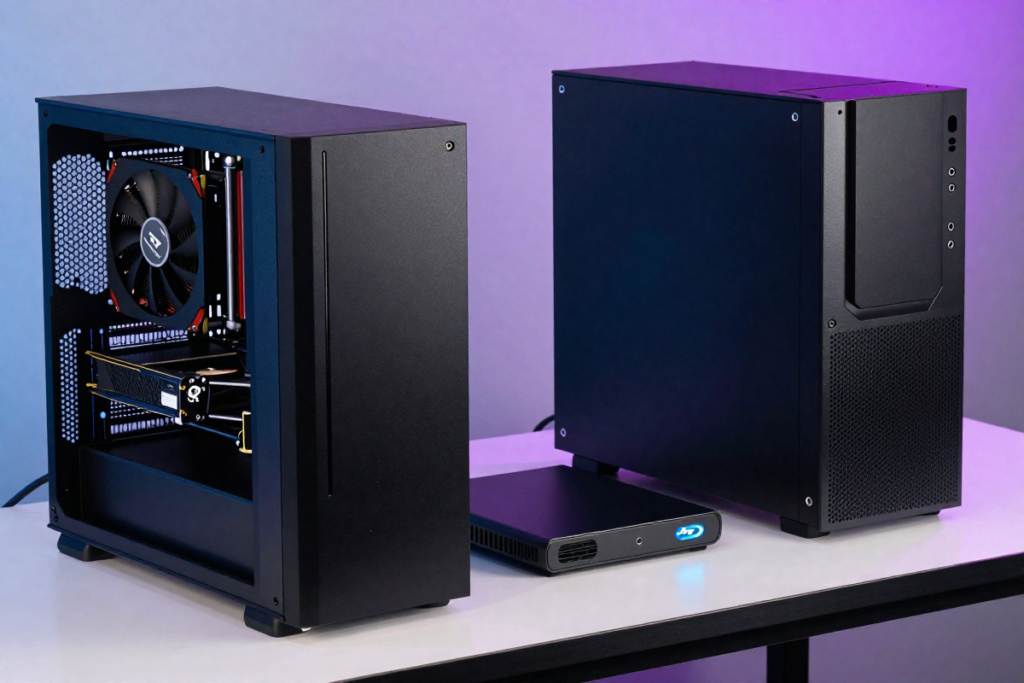
File Formats and Container Choices
When it comes to file formats, the choice of container can significantly impact how well your movies perform within Plex. MKV (Matroska Video) is the preferred container format for Plex. It supports a wide range of video and audio codecs, maintains high quality, and handles multiple tracks and subtitles effortlessly. MKV files are highly versatile, making them ideal for preserving the complex data found in 4K Blu-Rays.
Alternatively, MP4 (MPEG-4 Part 14) is another popular option, particularly due to its broad compatibility with various devices. However, MP4 can sometimes struggle with the advanced features of 4K content, such as retaining multiple audio tracks or subtitles in their full quality. If you opt for MP4, make sure to select the H.264 codec for video and AAC for audio to maintain a balance between quality and file size.
Ensuring that your ripped files are in these formats will help Plex recognize and play them without issues. Plex’s robust support for MKV means you’re more likely to have a trouble-free streaming experience, while MP4 provides convenience and compatibility across a broader range of devices.
Adjusting Resolution and Bitrate for Plex Compatibility
While 4K content is known for its stunning resolution, Plex can handle these high-definition files more efficiently if you adjust certain settings. First, consider the resolution of your ripped files. Plex can stream 4K content without issues, but if you encounter performance problems or storage constraints, you might opt to transcode to a lower resolution. This adjustment is especially useful for devices that do not support 4K playback or for users with limited bandwidth.
Bitrate is another crucial factor. The bitrate affects the quality and file size of your video. Higher bitrates deliver better visual quality but result in larger files. For 4K content, a bitrate of around 20-30 Mbps is generally sufficient for maintaining high quality while keeping file sizes manageable. Plex’s transcoding settings allow you to adjust the bitrate dynamically based on the playback device and network conditions, ensuring a smooth viewing experience without excessive buffering.
For optimal Plex media streaming setup, consider setting up Plex’s server-side transcoding options. This feature allows Plex to adjust the resolution and bitrate on-the-fly, based on the capabilities of the device you’re streaming to. By enabling this, you ensure that your ripped files are always compatible with your playback devices, providing an uninterrupted and high-quality streaming experience.
In summary, optimizing your ripped 4K Blu-Rays for Plex involves choosing the right file formats and adjusting the resolution and bitrate to suit your needs. By using MKV for container formats and fine-tuning the resolution and bitrate settings, you can enhance your Plex media server’s performance and enjoy your movies in stunning clarity and efficiency.
Dealing with Audio Tracks and Subtitles
As you refine your 4K Blu-Ray rips for Plex, attention to audio tracks and subtitles can elevate your viewing experience. Ensuring that you have the best audio options and managing subtitles effectively will make your digital media library truly exceptional.
Selecting the Best Audio Options
When it comes to audio, selecting the optimal options is crucial for preserving the immersive quality of your movies. Dolby TrueHD and DTS-HD Master Audio are the gold standards for high-fidelity soundtracks. These lossless formats retain every nuance of the original audio, from the subtle whispers to the thunderous explosions, offering a cinematic experience that rivals a movie theater.
In MakeMKV or similar 4K movie ripping software, ensure that these audio tracks are selected during the ripping process. By keeping the original audio tracks, you maintain the high-quality sound intended by the filmmakers. For those who prefer a more space-efficient option, AAC (Advanced Audio Codec) can also be used. While not lossless, AAC offers good audio quality at lower bitrates, making it suitable for casual listening without excessive file sizes.
For multi-language films or special features, you might also want to include additional audio tracks. This ensures that your ripped files cater to different language preferences or provide the option to switch between different audio mixes. Just be mindful of the increased file size when adding multiple tracks.
Adding and Managing Subtitles
Subtitles are essential for accessibility and enjoyment, particularly for foreign films or users who prefer reading along. The most common subtitle formats include SRT (SubRip Subtitle) and ASS (Advanced SubStation Alpha). These formats are widely supported by Plex and can be easily added to your ripped files.
When ripping Blu-Ray discs, select the subtitle tracks you wish to include. MakeMKV allows you to choose from the available subtitle streams, ensuring that you capture all necessary subtitles for your viewing audience. It’s often beneficial to include both hardcoded subtitles, which are permanently burned into the video, and soft subtitles, which can be toggled on or off during playback.
Once your rip is complete, managing subtitles in Plex is straightforward. Plex automatically detects and displays subtitles if they are correctly embedded in the MKV file. You can also upload external subtitle files directly to Plex, ensuring that users can access subtitles in their preferred language or format.
For an added layer of convenience, Plex’s subtitle settings allow users to customize subtitle appearance, including font size and color. This feature enhances readability and ensures that subtitles complement the visual experience rather than distract from it.
In summary, managing audio tracks and subtitles effectively is key to creating a polished and enjoyable media experience. By selecting high-quality audio options and ensuring comprehensive subtitle coverage, you enhance the viewing experience for all users. This attention to detail transforms your 4K Blu-Ray rips into a premium streaming library, ready to deliver cinematic-quality entertainment at home.
Troubleshooting Common Issues
Even with careful preparation and the right tools, you might encounter some bumps in the road while ripping 4K Blu-Rays for Plex. From quality and compatibility problems to errors and failed rips, knowing how to troubleshoot these issues can save you time and frustration.
Solving Quality and Compatibility Problems
One common issue is quality degradation. If your ripped file doesn’t look as sharp as expected, it could be due to incorrect settings or an inefficient codec. Ensure you’re using the HEVC codec (H.265), which is optimal for 4K video encoding and 4K resolution conversion. If you notice pixelation or blurriness, check your bitrate settings. A bitrate that’s too low can compromise video quality, so aim for a bitrate of 20-30 Mbps for 4K content to maintain visual clarity.
Another aspect to consider is color space and HDR support. 4K Blu-Rays often include HDR (High Dynamic Range) for richer color and contrast. Make sure your ripping software preserves HDR metadata if your Plex media server and playback device support it. If HDR isn’t displaying correctly, you might need to adjust settings or use a tool like HandBrake to ensure proper color grading.
Handling Errors and Failed Rips
Failed rips can be frustrating, especially after investing time and effort. One frequent cause of failure is encryption issues. If your ripping software fails to process the Blu-Ray, it might be due to outdated decryption algorithms. Ensure that you’re using the latest version of your software. For tools like MakeMKV, regularly check for updates to handle new Blu-Ray encryption removal methods effectively.
Hardware limitations can also lead to errors. Verify that your Blu-Ray drive and computer meet the recommended specifications for handling 4K content. Slow drive speeds or insufficient RAM can cause interruptions or failures. Upgrading your hardware or using a different drive might resolve these issues.
If you encounter file errors or corrupt rips, try re-ripping the disc. Ensure the disc is clean and free of scratches before starting the process again. In some cases, a damaged disc might not be fully rip-able, and using a disc repair kit or consulting professional services could help salvage the content.
Finally, incompatibility issues with Plex can arise. If your ripped file plays but has issues within Plex, check the file format and container. Plex has robust support for MKV files, but ensuring your Plex server is up to date can help resolve compatibility problems. Sometimes, converting the file to a different format using tools like MKVToolNix or HandBrake can also address playback issues.
In summary, troubleshooting common issues involves understanding the potential causes of quality degradation, errors, and compatibility problems. By addressing codec settings, encryption issues, and hardware limitations, you can ensure smooth ripping and streaming experiences. Armed with these solutions, you’ll be well-equipped to enjoy your 4K Blu-Ray collection without a hitch.
Organizing and Managing Your 4K Movie Library
Once you’ve successfully ripped and optimized your 4K Blu-Rays, the next crucial step is organizing and managing your movie library. Effective organization ensures easy access and a seamless streaming experience, while proper metadata handling enriches your media’s presentation.
Naming and Metadata Best Practices
Proper naming conventions are the cornerstone of a well-organized Plex media server library. For consistency, use a standardized naming format that includes the movie title, year, and quality. For example, name your files as “Movie Title (Year) [4K].mkv.” This format ensures that Plex can correctly identify and sort your files, reducing the likelihood of mismatches or errors.
Adding accurate metadata is equally important. Plex relies on metadata to provide detailed information about your movies, such as posters, summaries, and cast details. You can use Plex’s built-in metadata agents to automatically fetch this information, but it’s crucial that your files are named correctly to ensure accurate matches.
For movies that Plex doesn’t recognize, manually edit the metadata. Navigate to the movie within Plex, select “Edit Metadata,” and fill in details like the movie’s synopsis, release date, and genre. High-quality metadata not only improves searchability but also enhances the visual appeal of your digital media library, making browsing a pleasure.
Tips for Effective File Organization
Folder structure plays a vital role in maintaining an organized library. Create a hierarchical folder system that mirrors Plex’s library structure. For instance, use a top-level folder named “Movies” with subfolders for different genres or categories if needed. Inside each genre folder, store movies in individual subfolders named by their title and year. This structure not only helps Plex index your files accurately but also keeps your media neatly sorted.
Regular maintenance of your library ensures continued organization. Periodically check for and resolve any discrepancies or errors in metadata. Remove duplicates and obsolete files to keep your collection streamlined and up-to-date. This maintenance can be done manually or by using tools like Plex Media Server’s library update features, which automatically scan for and correct inconsistencies.
Backups are essential for preserving your movie collection. Regularly back up your Plex database and media files to an external hard drive or cloud storage. This practice protects your library against data loss due to hardware failures or accidental deletions.
Finally, tags and ratings can enhance your Plex experience. Use Plex’s tagging system to categorize movies by specific themes or personal preferences, making it easier to find movies based on your mood or occasion. Ratings and personal reviews can also be added to help you remember your favorites or track which movies you’ve watched recently.
In summary, organizing and managing your 4K movie library involves adhering to naming conventions, optimizing metadata, and maintaining an efficient folder structure. By implementing these practices, you ensure that your Plex library remains well-structured, easily navigable, and visually appealing, ready for uninterrupted high-definition movie streaming and enjoyment.
Streaming Your Ripped 4K Movies on Plex

With your 4K Blu-Rays ripped and organized, it’s time to dive into streaming these high-definition gems on Plex. Setting up Plex for optimal 4K streaming and fine-tuning your settings ensures a flawless viewing experience, free from buffering and compatibility issues.
Setting Up Plex for 4K Streaming
To start, ensure that your Plex Media Server is properly configured to handle 4K content. Plex is designed to support high-resolution streams, but your server’s hardware needs to meet certain criteria. A powerful CPU and ample RAM are essential for smooth playback and transcoding. For 4K streaming, a server with a modern multi-core processor and at least 8GB of RAM is recommended.
Next, add your 4K movies to Plex. Navigate to the Plex Web App, go to “Libraries,” and select “Add Library.” Choose the appropriate library type—typically “Movies”—and then point Plex to the folder where your ripped 4K files are stored. Plex will scan this directory, indexing your content and fetching metadata for a polished viewing experience.
Ensure your network setup is up to par. Streaming 4K content requires a robust and fast network connection. A wired connection via Ethernet is preferred over Wi-Fi for stability and speed. If you must use Wi-Fi, ensure you have a modern router capable of handling high-bandwidth streams, preferably with Wi-Fi 6 technology.
Optimizing Plex Settings for Best Playback
Once your server is set up, it’s time to optimize Plex settings to enhance playback quality. Navigate to the Plex Web App, go to “Settings,” and then “Server.” Under “Transcoder,” ensure that “Enable hardware acceleration” is turned on. This setting allows Plex to use your server’s GPU to handle video processing, reducing the strain on your CPU and ensuring smoother playback.
In the same section, adjust the maximum bitrate settings. Plex allows you to set a maximum bitrate for remote streaming, which can help prevent buffering. For 4K content, set the bitrate to a high value, such as 30-50 Mbps, to maintain video quality. Be mindful of your network’s capacity and adjust accordingly if you encounter performance issues.
For local playback, ensure that direct play is enabled. Direct Play allows Plex to stream the original file without transcoding, preserving the quality of your 4K movies. To enable this, go to “Settings,” select “Player,” and ensure that “Direct Play” is enabled for all compatible devices. This setting ensures that your Plex client streams the original file rather than converting it on the fly.
Finally, manage your client devices. Make sure that the devices used for streaming—such as smart TVs, media players, or streaming boxes—support 4K playback and are configured correctly. Devices should be connected to the same network as your Plex server to ensure optimal streaming performance.
In summary, setting up Plex for 4K streaming involves configuring your server hardware, network setup, and Plex settings to handle high-definition content. By optimizing these elements, you ensure a seamless and high-quality viewing experience for all your ripped 4K Blu-Rays, transforming your media library into a premier streaming hub.
Maintaining and Updating Your Plex Media Server
To ensure a seamless streaming experience with your Plex Media Server, regular maintenance and updates are essential. Keeping your software up-to-date and implementing routine care can help you avoid issues and enhance performance.
Keeping Your Software Up-to-Date
One of the most critical aspects of maintaining a Plex Media Server is keeping the software updated. Plex frequently releases updates that include new features, bug fixes, and performance enhancements. To ensure you’re running the latest version, enable automatic updates in the Plex Web App. This setting will automatically download and install updates, so you don’t miss out on crucial improvements.
If you prefer manual updates, regularly check the Plex website or the app’s update notifications. When a new version is available, download and install it. Be sure to back up your Plex server data before updating, just in case you encounter any issues during the process. This precaution helps prevent data loss and ensures a smooth transition to the new version.
Additionally, keep your operating system and hardware drivers updated. Plex relies on your system’s underlying software and hardware to function correctly. Ensure your OS and drivers are current to avoid compatibility issues and take advantage of performance optimizations provided by updates.
Tips for Regular Maintenance
Routine maintenance is key to keeping your Plex Media Server running smoothly. Start by regularly clearing server caches and optimizing your database. Plex’s cache can accumulate temporary files that may slow down performance. Clear the cache through the Plex Web App by going to “Settings,” then “Manage,” and selecting “Clear Cache.” Similarly, use the “Optimize Database” option to ensure your library’s metadata and settings are efficiently organized.
Perform periodic library scans to keep your media collection current. Plex should automatically update your library, but manual scans can resolve issues with missing or incorrect metadata. Navigate to “Libraries” in the Plex Web App and select “Scan Library Files” for each library you want to refresh. This action will update metadata and add any new content you’ve added since the last scan.
Backups are another crucial aspect of server maintenance. Regularly back up your Plex database and media files to prevent data loss. Use a reliable backup solution, such as an external hard drive or cloud storage, and schedule backups to occur automatically. This practice safeguards your collection against hardware failures or accidental deletions.
Finally, monitor server performance and troubleshoot issues as they arise. Use Plex’s built-in diagnostics tools to check server status and identify potential problems. Address issues promptly to avoid disruptions in your streaming experience.
In summary, maintaining and updating your Plex Media Server involves keeping the software and system components current, performing regular cache and database optimizations, and backing up your data. By adhering to these practices, you ensure that your Plex server remains efficient, reliable, and ready to deliver uninterrupted high-definition movie streaming.
Best Practices for Ripping 4K Blu-Rays Safely
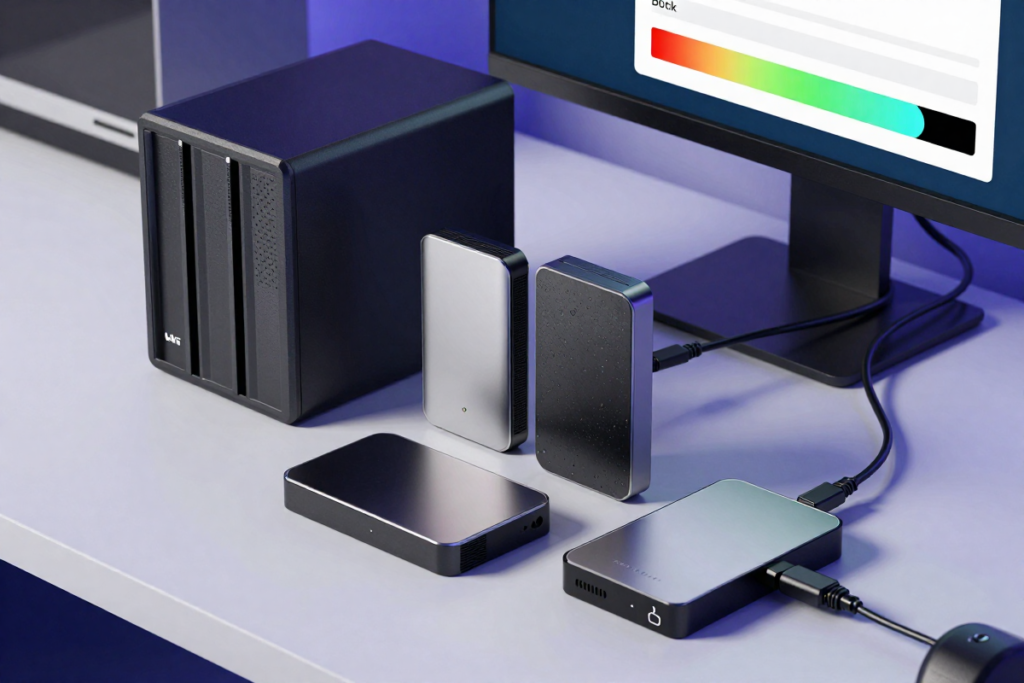
Ripping 4K Blu-Rays can enhance your media experience, but it’s important to follow best practices to ensure safety and quality. Adhering to these guidelines will help you navigate potential legal issues and maintain the integrity of your media files.
Avoiding Legal Pitfalls
When it comes to ripping 4K Blu-Rays, legal considerations are paramount. The legality of ripping Blu-Rays varies by country and jurisdiction, so it’s crucial to familiarize yourself with local laws. In many regions, copying copyrighted material for personal use may be permissible, but distributing or sharing those copies is often prohibited. Always check your local copyright regulations to ensure compliance.
To stay on the right side of the law, only rip Blu-Rays you own. Copying content from rented or borrowed discs can infringe on copyright laws. The principle here is that you are legally allowed to make a backup of media you’ve purchased but not to duplicate content for others.
Avoid using pirated software for ripping your Blu-Rays. While it might seem tempting to use unauthorized tools, these can expose your system to malware and legal risks. Stick to reputable software with a proven track record for safe and legal use.
Ensuring Quality and Longevity of Your Rips
To maintain the quality of your ripped 4K Blu-Rays, choose the right ripping software and settings. Use high-quality tools that support lossless or near-lossless compression to preserve the original video and audio quality. When configuring your ripping settings, opt for formats and codecs that maintain high resolution and bitrate, such as H.265/HEVC for video and AAC or FLAC for audio.
Storage is another critical factor in ensuring the longevity of your rips. Store your ripped files on reliable, high-capacity storage media. External hard drives for Plex, SSDs, or NAS (Network-Attached Storage) systems are excellent choices for long-term storage. Additionally, consider using a RAID setup for redundancy and data protection.
Regularly check the integrity of your stored files. Occasionally verify that your rips are not corrupted or degraded by opening them and checking playback quality. Tools like file integrity checkers can help ensure that your files remain in pristine condition.
Backing up your files is essential for protecting against data loss. Create and maintain backups on different storage devices or use cloud storage solutions for added security. Regularly update your backups to include new rips and any changes to your media library.
Lastly, organize your media library efficiently to facilitate easy access and management. Consistent naming conventions and structured folder organization not only help Plex but also make it simpler to locate and manage your files over time.
In conclusion, ripping 4K Blu-Rays safely involves understanding legal boundaries, using quality tools and settings, and ensuring the longevity of your rips through proper storage, regular checks, and effective backup strategies. By following these best practices, you can enjoy a rich digital media library while protecting both your content and your investment.
Recommended Products
When it comes to ripping 4K Blu-Rays for Plex, having the right tools makes all the difference. From powerful software to reliable storage solutions, investing in top-notch products ensures a smooth and efficient ripping experience. Here are some highly recommended options to elevate your media setup.
Top-Rated Ripping Software
Selecting the right ripping software is crucial for achieving high-quality results. Here are some top-rated programs that stand out in the world of 4K Blu-Ray ripping:
- MakeMKV – Renowned for its ease of use and robust performance, MakeMKV allows you to convert your Blu-Rays into MKV files while retaining the original quality. Its user-friendly interface and ability to handle the latest Blu-Ray decryption make it a favorite among enthusiasts for high-definition movie streaming.
- DVDFab – DVDFab offers a comprehensive suite of tools for ripping and converting 4K Blu-Rays. With its advanced settings, you can customize your 4K movie conversion process to suit your specific needs, ensuring that every detail of your media is preserved. Its versatility makes it an excellent choice for various video file formats.
- HandBrake – A versatile and open-source option, HandBrake provides powerful 4K video encoding capabilities. While it may require some manual configuration, its extensive support for various formats and codecs makes it an excellent choice for those who want control over their output.
- Leawo Blu-ray Ripper – Leawo Blu-ray Ripper is known for its high-quality output and fast ripping speed. It supports a wide range of formats and offers various customization options for Blu-Ray to MP4 conversion, allowing you to tailor the ripping process to your preferences.
Best External Drives for Ripping and Storage
Having a reliable external drive is essential for both ripping and storing your 4K Blu-Rays. Here are some top external drives that combine performance and reliability:
- Seagate Backup Plus Hub – This high-capacity external drive offers ample storage space and fast data transfer rates. Its built-in USB hub provides additional connectivity options, making it a versatile choice for both ripping and storing your media collection.
- Western Digital My Book – Known for its durability and large storage capacity, the Western Digital My Book is a great option for storing massive amounts of data. Its backup software and password protection features add an extra layer of security to your digital media library.
- Samsung T7 Portable SSD – For those who need speed and portability, the Samsung T7 Portable SSD is an excellent choice. Its compact design and rapid read/write speeds make it ideal for quick access to your ripped files and efficient data transfer, enhancing your Plex media streaming setup.
- LaCie Rugged Mini – Built to withstand physical shocks and environmental hazards, the LaCie Rugged Mini is perfect for users who need a rugged external drive for their media collection. Its reliable performance and robust design ensure your files are safe, whether you’re at home or on the go.
Investing in high-quality ripping software and reliable external drives not only enhances your ripping experience but also ensures your media library is well-organized and secure. By choosing the right products, you can enjoy your 4K Blu-Rays in perfect quality on Plex, making your home entertainment setup truly exceptional.
Conclusion
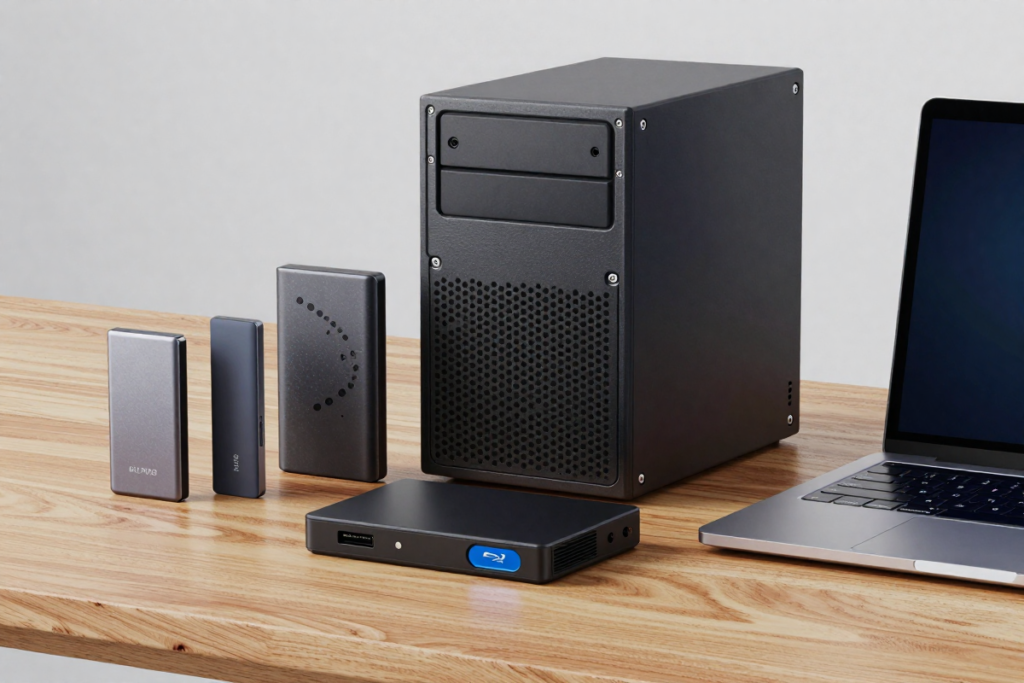
As we wrap up our guide on ripping 4K Blu-Rays for Plex, let’s revisit the key tips to ensure your movie streaming experience is nothing short of exceptional. Armed with the right tools and techniques, you can transform your physical media collection into a digital library that’s ready to stream at your fingertips.
Recap of Key Tips
First and foremost, start by understanding why ripping 4K Blu-Rays is a game-changer for your media setup. The high-resolution quality of 4K Blu-Rays ensures that your movies look stunningly sharp on your Plex server, delivering an immersive viewing experience.
To kick off the ripping process, equip yourself with top-notch software and hardware. Software like MakeMKV and DVDFab offer robust performance for extracting high-quality digital copies of your discs, while external drives like the Seagate Backup Plus Hub and Samsung T7 Portable SSD provide ample and reliable storage. Remember, the choice of ripping software and storage solutions can significantly impact the quality and efficiency of your ripping tasks.
Understanding the intricacies of 4K Blu-Ray formats and codecs is also vital. With proper knowledge of file formats and codecs, you can ensure that your ripped movies maintain their high quality and are compatible with Plex. Choosing the right settings for resolution and bitrate can optimize playback and enhance your overall streaming experience. Make sure to employ 4K resolution conversion and 4K video quality tips for optimal Plex settings.
Preparing your Blu-Rays properly before ripping—by checking for region codes and cleaning the discs—will help avoid common issues and ensure a smooth ripping process. If you encounter any problems during the rip, Blu-Ray ripping tutorials and troubleshooting tips can assist in resolving quality or compatibility issues and handling errors effectively.
Organizing your media library with effective naming conventions and metadata practices will make it easier to navigate your collection in Plex. Plex media organization and Plex library organization are key to a well-managed digital media library.
And don’t forget, maintaining and updating your Plex Media Server regularly keeps everything running smoothly and your media up-to-date. This includes performing regular digital movie backups and using media management tools to keep your library in top shape.
Encouragement to Start Ripping and Streaming
Now that you’re equipped with all the essential information, it’s time to dive into the world of 4K Blu-Ray ripping. Embrace the opportunity to create a personalized and high-quality media library that’s accessible anytime, anywhere. The process may seem intricate, but with the right tools and knowledge, you’ll find it both rewarding and enjoyable.
So, gather your favorite 4K Blu-Rays, set up your ripping software, and get started on transforming your physical collection into a sleek, digital library. Whether you’re binge-watching your favorite series or enjoying a blockbuster film, the results will make your home entertainment system shine. Happy ripping and streaming!
Additional Resources
As you embark on the journey of ripping 4K Blu-Rays and optimizing your Plex streaming experience, having access to additional resources can be incredibly beneficial. Whether you’re seeking detailed tutorials, exploring user forums, or connecting with communities, these resources can provide invaluable support and enhance your ripping and streaming endeavors.
Useful Tutorials and Guides
- YouTube Tutorials – A treasure trove of visual guides, YouTube tutorials cover every aspect of 4K Blu-Ray ripping. Channels like “TechGumbo” and “HowToGeek” offer step-by-step instructions on using popular 4K movie ripping software and configuring your Plex setup guide for optimal performance. Watching these tutorials can provide hands-on insights and practical Plex streaming tips that are easy to follow.
- Official Software Documentation – MakeMKV, DVDFab, and other best ripping software often have comprehensive user manuals and FAQs available on their official websites. These documents offer detailed explanations of software features, Blu-Ray decryption methods, troubleshooting tips, and best practices for achieving optimal movie quality preservation. Exploring these resources can deepen your understanding and help you navigate any challenges you encounter with 4K movie conversion.
- Online Guides and Blogs – Websites like “CNET” and “Tom’s Hardware” frequently publish in-depth guides on media ripping and Plex media server configuration. These guides cover a wide range of topics, from basic ripping techniques to advanced Plex media organization tips, providing a thorough overview of the processes involved, including Blu-Ray to digital and UHD Blu-Ray ripping.
- Online Guide – For those who prefer a more structured approach, “The Plex Media Server Guide” is full of helpful info.
Forums and Communities for Help
- Reddit – Subreddits like r/Plex and r/4kbluray are vibrant communities where users share their experiences, tips, and troubleshooting advice. Engaging with these forums allows you to ask questions, seek recommendations, and receive feedback from fellow enthusiasts who are well-versed in the nuances of Blu-Ray ripping discs and Plex streaming.
- Plex Community Forum – The official Plex forums are a fantastic place to connect with other Plex users. You can find dedicated sections for troubleshooting, feature requests, and general discussions. The community is active and helpful, providing solutions to common issues and sharing insights on optimizing your Plex media streaming setup and Plex library organization.
- Digiarty Forum – Digiarty’s forum is a go-to resource for discussions related to video conversion and ripping software. Here, you can find user experiences, software updates, and detailed solutions to specific problems. Participating in these discussions can enhance your knowledge and offer practical advice tailored to your needs, including Blu-Ray encryption removal and 4K resolution conversion.
- AVS Forum – For more technical discussions, the AVS Forum provides a platform for enthusiasts to delve into high-definition media and streaming technologies. The forum hosts discussions on 4K Blu-Ray ripping, media server configurations, and advanced streaming setups, offering a wealth of expertise from knowledgeable users about media management tools and 4K video encoding.
By tapping into these additional resources, you can refine your ripping and streaming skills, troubleshoot issues effectively, and connect with a community of like-minded enthusiasts. Whether you’re looking for tutorials, documentation, or peer support, these resources will help you make the most of your 4K Blu-Ray ripping and Plex streaming journey. Happy exploring!