Imagine having the power to preserve your favorite Netflix movies and shows forever, no buffering, no subscription limits—just pure, uninterrupted enjoyment at your fingertips. Sounds like a dream, right? With the right tools and techniques, this dream can become a reality. In this guide, we’ll unravel the secrets to recording Netflix movies with ease, ensuring you never miss a moment of your cherished content. Whether you’re a binge-watcher who wants to savor every scene or someone seeking to build a personal archive of cinematic gems, you’ll find everything you need right here. From choosing the perfect software to mastering the recording process, we’ll walk you through each step with precision and clarity. Say goodbye to fleeting streaming experiences and hello to your very own library of Netflix favorites, ready to be revisited anytime you wish. Let’s dive into the effortless world of movie recording and unlock the door to endless entertainment.
Introduction: Why Record Netflix Movies?

Benefits of Recording Your Favorite Content
Recording Netflix movies is not just about preserving a fleeting moment; it’s about creating a personalized library of cinematic experiences that you can access anytime, without the need for an internet connection. Imagine having your favorite films and shows readily available at your fingertips, free from buffering issues and potential subscription changes. This level of accessibility can be a game-changer for anyone who enjoys a deep dive into their favorite genres or revisits beloved classics.
Moreover, using Netflix recording software enables you to bypass the limitations of streaming services that might include ads or restrict access to certain titles after a period. By creating your own archive, you gain control over your viewing experience, ensuring that your favorite films are always available whenever the mood strikes. This autonomy not only enhances your viewing pleasure but also protects you from the unpredictability of streaming service libraries.
Understanding the Legality and Fair Use
Before diving into the technical aspects of recording Netflix movies, it’s crucial to grasp the legal landscape surrounding this practice. While it is tempting to view recording as a simple way to ensure perpetual access to your favorite shows, understanding the legalities is essential to avoid potential pitfalls.
In most jurisdictions, recording Netflix movies for personal use is generally considered acceptable under the doctrine of fair use. This means that as long as the recorded content is not distributed or shared with others, it typically falls within legal boundaries. However, it’s important to recognize that laws can vary, and certain restrictions may apply depending on where you live. Always review local copyright laws and the terms of service of the streaming platform to ensure compliance.
It’s also worth noting that while recording for personal use is generally permissible, distributing or selling recorded content is unequivocally illegal and can result in serious legal consequences. Keeping recordings for personal enjoyment and not sharing them with others helps maintain the balance between enjoying content and respecting intellectual property rights.
In conclusion, recording Netflix movies offers a treasure trove of benefits, from enhanced accessibility to creating a customized viewing experience. Understanding the legal framework ensures that this practice remains within acceptable boundaries, allowing you to enjoy your favorite content without legal concerns. As you explore the methods to capture and preserve your Netflix favorites, you can do so with confidence, knowing that you’re enhancing your entertainment experience responsibly.
Tools and Software for Recording Netflix Movies
Overview of Popular Recording Software
Recording software has evolved significantly, providing users with robust options to capture and save streaming content. Popular choices often include features like high-definition recording, batch processing, and extensive format support. These video capture tools cater to various needs, whether you’re looking for a straightforward solution or a comprehensive recording suite.
Most screen recording software provides an intuitive user interface designed to make the process as seamless as possible. Advanced options might include settings for adjusting video and audio quality, selecting different file formats, and scheduling recordings for automated captures. The best recording tools also offer support for various streaming platforms beyond Netflix, adding versatility to your recording setup.
Comparing Audials Movies and StreamFab by DVDFab
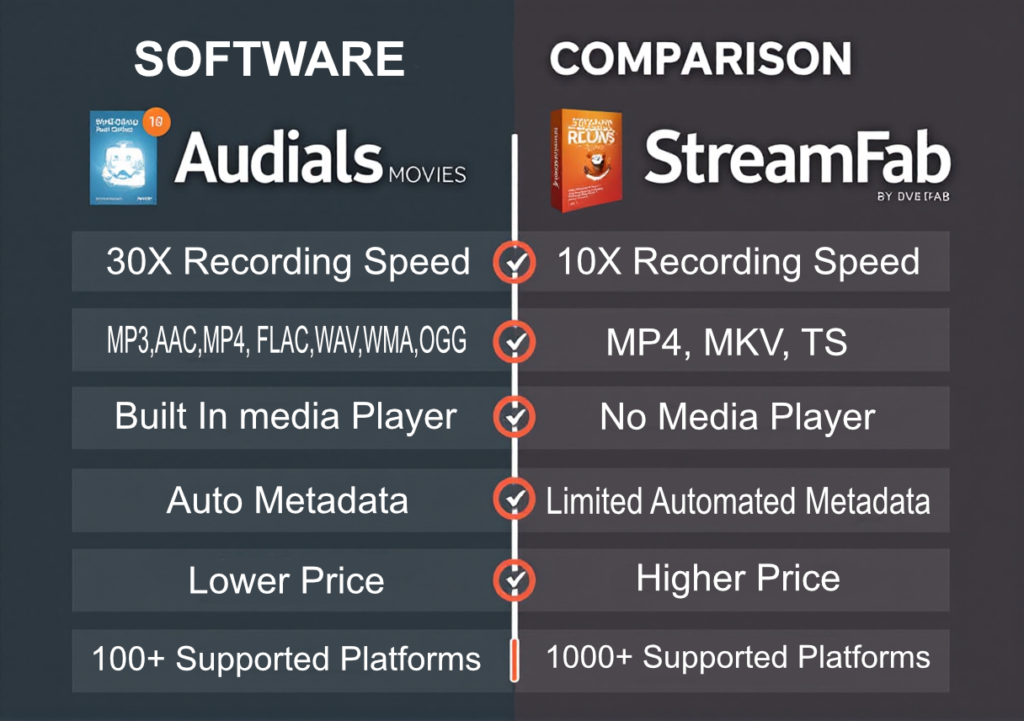
When it comes to recording Netflix movies, two software solutions frequently stand out: Audials Movies and StreamFab by DVDFab. Each has its own strengths, making them suitable for different types of users.
Audials Movies is renowned for its user-friendly interface and powerful recording capabilities. It boasts features such as automatic detection of Netflix streams, high-definition recording options, and an array of file formats to choose from. One of Audials Movies’ standout features is its ability to handle batch recordings, making it ideal for capturing multiple titles in one go. The software also includes editing tools to refine your recordings, ensuring you get the best quality.
On the other hand, StreamFab by DVDFab offers a slightly different set of advantages. Known for its speed and efficiency, StreamFab excels in quickly downloading and converting Netflix content into various formats. It provides a straightforward recording process with minimal configuration required, making it a great option for users who prefer a more automated approach. StreamFab also supports high-quality recording and includes options for adjusting video quality to suit your preferences.
Both Audials Movies and StreamFab by DVDFab offer impressive features, but the best choice depends on your specific needs. If you’re looking for a comprehensive tool with advanced editing capabilities and batch processing, Audials Movies might be your best bet. Conversely, if speed and simplicity are your priorities, StreamFab by DVDFab could be the ideal solution.
In summary, selecting the right software for recording Netflix movies involves considering your individual requirements and preferences. By understanding the strengths of each option, you can make an informed choice that will enhance your viewing experience and ensure that your favorite content is always within reach.
Getting Started with Audials Movies
Installation and Setup Guide
Installing Audials Movies is a straightforward process that sets the stage for your recording adventures. Begin by downloading the software from the official Audials website. Once the installer is downloaded, launch it and follow the on-screen instructions. The setup wizard will guide you through the installation process, including choosing your preferred language and installation directory.
After installation, open Audials Movies for the first time. You’ll be greeted with a welcome screen that provides a brief overview of the software’s capabilities. Take a moment to explore this introduction—it’s a handy guide to understanding the core features of the program. If prompted, ensure that you update the software to the latest version to benefit from the latest improvements and bug fixes.
Navigating the User Interface
The user interface of Audials Movies is designed with ease of use in mind. Upon opening the software, you’ll find a clean, intuitive layout that guides you through the recording process effortlessly. The main dashboard provides access to all essential features, including a search bar, recording options, and settings.
To start, locate the “Record” tab on the dashboard. This is where you’ll initiate and manage your recordings. The software allows you to search for the movie you wish to record directly within the interface. Once you’ve selected your movie, you can view detailed information and preview the content before recording.
The sidebar provides additional options such as “Library,” where you can manage and organize your recorded content, and “Settings,” where you can customize your recording preferences. Familiarize yourself with these sections to streamline your recording workflow.
Recording Settings and Customizations
Customizing your recording settings in Audials Movies ensures that you capture your Netflix movies exactly the way you want. Begin by navigating to the “Settings” section, accessible from the sidebar. Here, you can adjust various parameters to enhance your recording quality.
Select the “Recording” tab to configure video resolution, audio quality, and file format. For the best results, choose high-definition options to ensure that your recordings match the quality of the original content. Audials Movies supports a range of file formats, so you can select the one that best suits your needs, whether it’s MP4, AVI, or another popular format.
Additionally, explore the “Customizations” options to set up automatic recordings. This feature allows you to schedule recordings in advance, so you can capture movies even when you’re not actively using the software. Simply set the start and end times, and Audials Movies will handle the rest.
With these settings in place, you’re ready to start recording your favorite Netflix movies with confidence. Audials Movies offers a seamless recording experience, combining powerful features with a user-friendly interface to make preserving your favorite content a simple and enjoyable task.
Step-by-Step: How to Record Netflix Movies with Audials Movies
Finding and Selecting the Netflix Movie
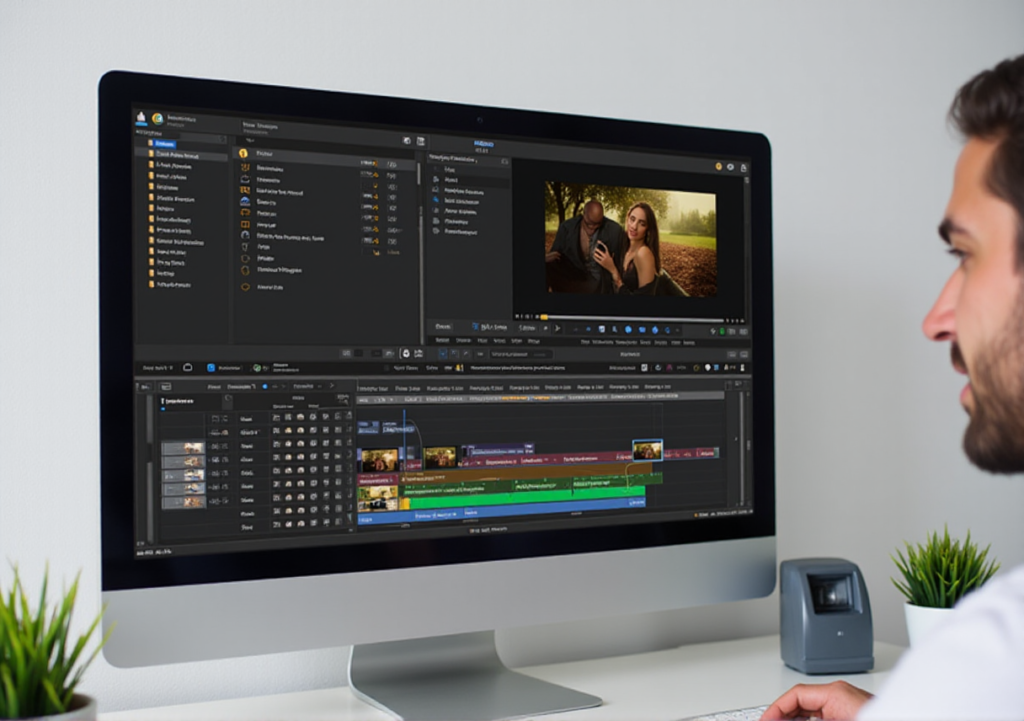
First, launch Audials Movies and navigate to the “Record” tab on the main dashboard. Here, you’ll find a search bar designed to streamline the process of locating your desired content. Enter the title of the Netflix movie you wish to record, and Audials Movies will search through the streaming platform’s library.
Once you’ve found your movie, click on it to open the detailed view. This view provides essential information about the film, including its duration and quality. It’s a good idea to preview the content briefly to ensure you’ve selected the correct title. If you’re recording a series or multiple movies, repeat this process for each item on your list.
Configuring the Recording Options
With your movie selected, it’s time to configure your recording options to achieve the best results. Head to the “Settings” tab within the “Record” section. Here, you’ll see various options for customizing your recording. Start by choosing the video resolution that best matches your viewing preferences; higher resolutions will offer better quality but may require more storage space.
Next, select your preferred audio settings. Audials Movies allows you to choose from several audio formats, so pick one that aligns with your needs. You can also adjust other parameters such as file format and output directory, ensuring that your recordings are saved in a location that’s easy to access.
If you plan to record multiple movies or episodes, consider using the batch recording feature. This option lets you queue up several recordings, saving you time and effort. Just add each item to the queue, and Audials Movies will handle the rest, recording each one according to your specified settings.
Starting and Stopping the Recording Process
Once you’ve configured your settings, you’re ready to begin recording. Click the “Start Recording” button on the main screen. Audials Movies will automatically launch the Netflix movie and begin capturing the content in real-time. Ensure that your internet connection is stable to avoid interruptions during the recording process.
While the recording is in progress, you can monitor its status through the software’s interface. A progress bar will indicate how much of the movie has been recorded, and you’ll have the option to pause or stop the recording if needed. If you’re recording a long movie or a series, you might prefer to let the process run uninterrupted.
When the recording is complete, click the “Stop Recording” button. Audials Movies will finalize the file and save it to your designated output directory. You can then access your recorded movie from the “Library” section of the software, where it will be organized and ready for playback.
By following these straightforward steps, you can effortlessly record your favorite Netflix movies with Audials Movies. Enjoy the freedom of having your preferred content always available, and make the most of your viewing experience with high-quality recordings at your convenience.
Post-Recording: Editing and Saving Your Files
Editing Recorded Content for Quality
Once your recording is complete, it’s time to refine the footage. Editing your recorded content helps enhance the viewing experience by improving video and audio quality and removing any unnecessary sections. Audials Movies includes built-in editing tools that make this process straightforward.
Start by opening your recorded file within Audials Movies’ editing suite. Here, you can trim any extraneous content, such as pre-rolls or credits, to focus solely on the main feature. Utilize the cutting and splitting tools to precisely adjust the start and end points of your recording.
Next, consider enhancing the video quality. Audials Movies allows you to adjust brightness, contrast, and sharpness to ensure the visual quality is as close to the original stream as possible. For audio, you can fine-tune levels and remove any unwanted background noise. These adjustments can make a significant difference, transforming your recordings into polished, professional-looking files.
For more advanced edits, you can use external video editing software if desired. This step is optional but can provide additional features and flexibility if you want to create a more customized viewing experience. Consider exploring various screen recording software and video capture tools to find the best fit for your editing needs.
Saving and Organizing Your Movies
With your edits complete, the next step is to save and organize your movies. In Audials Movies, navigate to the “Library” section, where all your recorded files are displayed. It’s crucial to save your edited recordings in a format and location that suits your needs.
Choose an appropriate file format based on your storage preferences and playback devices. Common formats like MP4 or MKV are widely supported and offer good quality without excessive file sizes. Ensure that your files are saved in high resolution to maintain the best viewing experience. This step is essential for effective video file management and movie archiving.
Organization is key to managing your growing collection of recordings. Create a structured folder system on your computer or external hard drive, categorizing movies by genre, release year, or any other criteria that makes sense for you. Consistent naming conventions will also help you easily locate and retrieve your movies later on.
For added convenience, consider using cloud storage solutions to back up your recordings. This provides an extra layer of security and allows you to access your movies from different devices. Additionally, cloud storage can free up space on your local drives, keeping your system running smoothly. This approach supports offline media access and ensures your digital movie recording efforts are well-preserved.
In conclusion, editing and organizing your recorded Netflix movies ensures that you enjoy high-quality content while keeping your files neatly arranged and easily accessible. By taking these steps, you can create a personalized movie library that’s both functional and enjoyable, ready to deliver countless hours of entertainment.
Getting Started with StreamFab by DVDFab
Installation and Initial Setup
Setting up StreamFab by DVDFab is a straightforward process that gets you recording quickly. Begin by downloading the software from the official DVDFab website. Once the installer is downloaded, open it and follow the prompts to install the program on your computer. The setup wizard will guide you through selecting your preferred installation location and any additional components required.
After installation, launch StreamFab for the first time. You’ll be greeted by an initial setup screen that provides an overview of the software’s core functions. Take a moment to review this introduction, as it will familiarize you with the primary features and ensure you start with a solid understanding of the program’s capabilities.
User Interface Walkthrough
StreamFab’s user interface is designed to be both intuitive and efficient. When you first open the software, you’ll see a clean and organized layout with clear tabs and icons. The main dashboard provides easy access to all the essential features you’ll need for recording.
Start by navigating to the “Streaming Services” tab, where you’ll find a list of supported platforms, including Netflix. Select Netflix from the list to initiate the recording process. The software’s built-in search functionality allows you to quickly locate the movie or show you want to capture.
Once you’ve selected your content, the interface will display options for adjusting recording settings. These settings include video resolution, audio quality, and file format. The user-friendly design makes it easy to customize these parameters to suit your preferences, ensuring that you get the best possible recording quality. This includes configuring video quality settings and other recording settings to match your specific needs.
Key Features and Benefits
StreamFab by DVDFab is packed with features that enhance your recording experience. One of its standout attributes is its speed. StreamFab excels at quickly downloading and converting Netflix content, allowing you to enjoy your recordings without long waits. The software’s efficiency is particularly useful for capturing multiple episodes or movies in a short period. This makes StreamFab one of the best recording tools for efficient movie recording.
Another notable feature is the extensive format support. StreamFab offers a range of file formats, so you can choose the one that best fits your needs. Whether you prefer MP4 for its wide compatibility or MKV for its high quality, StreamFab has you covered. This versatility is essential for video file management and movie preservation.
StreamFab also includes scheduling capabilities, allowing you to set up automatic recordings. This feature is perfect for capturing new releases or scheduled shows without needing to be present during the recording. Simply configure the start and end times, and let StreamFab handle the rest. This automation supports effective recording streaming content and capturing online movies.
In addition, the software’s batch processing feature enables you to queue up multiple recordings. This functionality saves you time and ensures that your content is recorded efficiently. With StreamFab, you can create a comprehensive library of your favorite Netflix movies and shows with minimal effort.
In summary, StreamFab by DVDFab provides a robust set of features designed to streamline the recording process. From its intuitive interface to its powerful recording capabilities, StreamFab makes capturing and managing your Netflix content both simple and efficient. Whether you’re looking to save Netflix shows or use advanced video recording techniques, StreamFab offers a comprehensive digital media solution.
Step-by-Step: How to Record Netflix Movies with StreamFab
Choosing the Right Settings for Netflix Recording
Before diving into the recording process, configuring the right settings is crucial for optimal results. Open StreamFab and navigate to the “Settings” tab to begin customizing your preferences. Start by selecting the video resolution; higher resolutions like 1080p or 4K will provide a sharper, more detailed image, but may require more storage space. This is essential for achieving high-quality recording.
Next, choose your preferred audio quality. StreamFab allows you to select from several options, ensuring that the sound in your recordings matches the original Netflix stream. Opt for the highest quality available to preserve the audio fidelity of your favorite movies. This will enhance your recording experience and help with movie preservation.
Additionally, decide on the file format for your recordings. StreamFab supports various formats such as MP4 and MKV, each offering different benefits. MP4 is widely compatible with most devices, while MKV provides high-quality video and audio but may require specialized software for playback. Choosing the right format is important for effective video file management and offline media access.
Recording Process: A Comprehensive Guide
With your settings configured, it’s time to start recording. Navigate to the “Streaming Services” tab and select Netflix from the list of supported platforms. StreamFab will open a new window where you can search for the movie or show you want to record. Enter the title in the search bar and select it from the search results.
Once you’ve chosen your content, click on the “Record” button to initiate the recording process. StreamFab will start streaming and capturing the selected movie in real-time. During this time, you can monitor the progress via the software’s interface, which displays a recording timer and progress bar.
To ensure a smooth recording, make sure your internet connection is stable and your computer’s resources are available. If you encounter any issues, StreamFab provides troubleshooting tips within the software to help resolve common problems. Using Netflix recording software efficiently ensures that capturing online movies and recording streaming content are seamless experiences.
Handling Multiple Recordings and Batch Processing
One of StreamFab’s standout features is its batch processing capability, allowing you to record multiple movies or episodes in one go. To take advantage of this, start by adding multiple titles to your recording queue. Simply search for each movie or show you wish to capture and select the “Add to Queue” option.
Once you’ve added all your desired content, navigate to the “Queue” section. Here, you can review your list of scheduled recordings and adjust any settings if needed. StreamFab will handle the rest, recording each item in sequence according to your configured preferences. This feature is particularly useful for efficient movie recording and saving streaming videos.
This batch processing feature is especially useful for capturing entire series or multiple films in one sitting, saving you time and effort. You can even set up recording schedules to automate the process, ensuring that new releases or episodes are captured without requiring manual intervention. Stream capture programs like StreamFab streamline movie archiving and digital movie recording.
In conclusion, StreamFab by DVDFab offers a comprehensive and efficient solution for recording Netflix movies. By carefully choosing your settings, following a straightforward recording process, and utilizing batch processing, you can build an impressive library of your favorite content with ease.
Tips for Optimal Recording Quality
Adjusting Video and Audio Settings
The first step to optimal recording quality is configuring your video and audio settings. Start by adjusting the video resolution in your recording software. Higher resolutions, such as 1080p or 4K, offer superior clarity and detail, making your recordings look more like the original stream. However, keep in mind that higher resolutions require more storage space, so ensure you have ample disk capacity. This ensures effective digital video recorder usage and high-quality recording.
For audio settings, select a high-quality audio format to match the video resolution. StreamFab and Audials Movies offer various audio options, including Dolby Digital and AAC. Choose the highest quality available to preserve the richness and depth of the original sound. Additionally, adjust the audio bit rate to enhance the fidelity of your recordings. A higher bit rate generally results in better sound quality, although it will increase file size. This is key for capturing streaming video capture and recording techniques.
Ensuring High-Quality Output
To maintain high-quality output, make sure that your recording environment is optimized. Ensure that your computer’s performance is up to par by closing unnecessary applications and freeing up system resources. This will prevent lag or interruptions during the recording process.
Also, ensure a stable internet connection. Fluctuations in connectivity can affect the quality of the recording, leading to potential interruptions or reduced video quality. If possible, use a wired connection rather than relying on Wi-Fi for a more reliable and consistent experience. Proper internet connectivity is crucial for recording streaming content effectively.
Regularly update your recording software to benefit from the latest improvements and bug fixes. Developers frequently release updates that enhance performance and address issues, so keeping your software up-to-date ensures you’re always working with the best recording tools available. This supports smooth video editing and high-quality recording results.
Troubleshooting Common Issues
Even with the best preparation, you might encounter occasional issues with your recordings. Here’s how to troubleshoot some common problems:
- Poor Video Quality: If your recordings are not as clear as expected, check the video resolution settings in your software. Make sure you’ve selected the highest resolution available. Additionally, verify that your internet connection is stable and that no background applications are consuming excessive resources.
- Audio Desynchronization: If the audio and video are out of sync, try adjusting the audio settings and bit rate. Ensure that your recording software is configured to capture audio at the correct frequency and quality. If problems persist, restarting the software or your computer might resolve the issue.
- Incomplete Recordings: If a recording stops prematurely, check the file size and storage capacity of your hard drive. Ensure that you have enough space to accommodate the full length of the movie. Additionally, verify that the software is not being interrupted by other processes or system notifications.
By fine-tuning your video and audio settings, ensuring a high-quality recording environment, and addressing common issues, you can achieve optimal recording quality for your Netflix movies. With these tips, you’ll enjoy crystal-clear visuals and immersive audio, making your recordings a pleasure to watch. These practices are essential for efficient movie recording and preserving your favorite content for offline media access.
Storing and Managing Your Recorded Movies
Best Practices for File Management
Effective file management starts with a well-organized folder structure. Create a main directory on your computer or external drive dedicated to your recorded movies. Within this directory, establish subfolders based on categories such as genre, release year, or series. This organization not only makes it easier to locate specific titles but also helps keep your collection neatly arranged.
Naming conventions play a significant role in managing your files. Use clear and consistent titles for each recording, including the movie title, release year, and resolution if applicable. For example, “The Matrix (1999) 1080p” provides immediate context and facilitates quick searches, aiding in efficient video file management and digital media solutions.
Regularly clean up your library by removing duplicates or unwanted files. Over time, you may accumulate redundant copies of recordings or content you no longer wish to keep. Periodic reviews and deletions help maintain an efficient storage system and free up valuable disk space, which is crucial for effective media storage and movie archiving.
Backup Solutions and Cloud Storage Options
Backing up your recorded movies is essential to protect against data loss due to hardware failure or accidental deletion. Implement a reliable backup strategy that includes both physical and cloud-based solutions.
External hard drives or network-attached storage (NAS) devices are excellent options for physical backups. These devices offer ample storage capacity and can be easily connected to your computer. Regularly update your backups to ensure that your latest recordings are included. Consider using automated backup software to streamline this process and minimize manual intervention. Such measures are vital for safeguarding your digital movie recording and ensuring offline media access.
Cloud storage offers an additional layer of protection and accessibility. Services such as Google Drive, Dropbox, and OneDrive provide secure online storage options that can be accessed from any device with internet connectivity. Cloud storage is particularly useful for backing up critical files and ensuring that your movie collection is available even if your local storage fails. This method is essential for movie preservation and ensures your content is readily available for Netflix offline viewing.
When choosing a cloud storage provider, consider factors such as storage capacity, cost, and ease of access. Many services offer free tiers with limited storage, which may be sufficient for smaller collections. For larger libraries, paid plans with higher storage limits are available. Combining cloud storage with physical backups provides a hybrid solution that enhances redundancy and data security.
In conclusion, organizing and backing up your recorded movies with best practices ensures a well-maintained and secure collection. By implementing a structured file management system and leveraging reliable backup and cloud storage options, you can enjoy peace of mind knowing that your favorite films are preserved and easily accessible.
Alternative Methods for Recording Netflix Movies
Using Screen Recording Tools
Screen recording tools provide a versatile way to capture Netflix movies directly from your computer screen. These programs work by recording everything displayed on your screen, including the streaming content. Popular screen recording software such as OBS Studio, Camtasia, and Bandicam are widely used for this purpose. These tools are excellent for capturing streaming video content and integrating with various digital media solutions.
When using screen recording tools, ensure you select the highest possible resolution and frame rate to match the quality of the Netflix stream. Most screen recorders allow you to adjust these settings, which helps maintain the visual fidelity of the recording. Additionally, configure the audio settings to capture both the system sound and, if needed, your own commentary. This approach is crucial for high-quality recording and effective video capture tools.
To start recording, simply launch the screen recording tool, select the area of the screen you wish to capture, and begin playback of the Netflix movie. Be mindful of any on-screen distractions or notifications that may interfere with the recording. For the best results, ensure that your computer is running efficiently to avoid lag or stuttering during the recording process.
Exploring Browser Extensions and Plugins
Browser extensions and plugins offer another convenient method for recording Netflix movies. These add-ons integrate with your web browser and can capture streaming video directly. Popular options include extensions like Video DownloadHelper and Nimbus Screenshot & Screen Video Recorder.
To use these extensions, first install them from your browser’s extension store. Once installed, you’ll find new options added to your browser’s toolbar. Navigate to the Netflix movie you want to record and activate the extension. Some extensions provide a direct download link for the video, while others may offer screen recording capabilities similar to standalone software. These are often part of the best recording tools for saving streaming videos.
When using browser extensions, check for compatibility with Netflix and ensure the extension meets your recording needs. Extensions are often easier to use and require less setup than dedicated software, making them a great choice for quick and straightforward recordings.
However, be aware that not all browser extensions can handle high-definition streams or may have limitations on the length of the recording. For extensive or high-quality recordings, dedicated screen recording software or specialized recording tools might be a better fit for capturing online movies and recording Netflix series.
In conclusion, while software like StreamFab and Audials Movies offers comprehensive recording solutions, screen recording tools and browser extensions provide alternative methods for capturing Netflix movies. By selecting the appropriate tool based on your needs and preferences, you can effectively record and enjoy your favorite content with minimal hassle. These methods are part of an efficient strategy for movie archiving and digital movie recording.
Legal Considerations and Best Practices
Understanding Copyright Laws
Copyright laws are designed to protect the intellectual property of creators, including the content streamed on platforms like Netflix. These laws grant exclusive rights to the creators and distributors of the content, including the right to reproduce, distribute, and display their work. In essence, copying or recording copyrighted content without permission can infringe on these rights.
Netflix and other streaming services offer their content under specific terms of service, which usually prohibit downloading or recording movies and shows. This restriction is in place to safeguard the rights of the content creators and ensure that their work is not distributed without authorization.
Recording Netflix movies for personal use might seem like a harmless activity, but it’s essential to recognize that any unauthorized duplication or distribution can be considered a violation of copyright law. Always be aware of the legal implications of recording copyrighted material and ensure you are not breaching any terms of service agreements.
Staying Within Legal Boundaries
To stay within legal boundaries, it’s important to adhere to several best practices. Firstly, limit your recordings to personal use only. Sharing, distributing, or selling recorded content is illegal and can result in serious legal consequences. Your recordings should be for your viewing pleasure and should not be used to create copies for others.
Secondly, familiarize yourself with the terms of service for Netflix and other streaming platforms. These terms outline what is permissible regarding content use and recording. If you have any doubts, refer to these guidelines or consult with legal professionals to ensure compliance.
Additionally, consider using recording tools that respect copyright laws. Some software solutions and browser extensions are designed with built-in features to avoid unauthorized distribution and maintain compliance with legal standards. Opt for tools that prioritize ethical recording practices and offer features aligned with content protection, such as Netflix recording software that supports legal recording practices.
Lastly, always stay informed about changes in copyright laws and terms of service. The legal landscape regarding digital content is continually evolving, and what might be acceptable today could change tomorrow. Regularly reviewing updates from streaming platforms and legal resources will help you stay current and avoid potential pitfalls.
In summary, while recording Netflix movies can enhance your viewing experience, it’s crucial to navigate copyright laws and service agreements with caution. By understanding the legal framework and adhering to best practices, you can enjoy your recorded content responsibly and legally.
Frequently Asked Questions

Navigating the world of recording Netflix movies can raise a variety of questions. Whether you’re new to the process or a seasoned pro, addressing common issues and adopting best practices can enhance your experience. Here’s a rundown of frequently asked questions to help you tackle recording challenges and optimize your setup.
Common Issues and Solutions
- Why is my recorded video choppy or lagging? If your recorded video suffers from choppiness or lag, it’s often due to insufficient system resources. Ensure your computer meets the recommended specifications for the recording software you’re using. Close unnecessary applications to free up processing power and check for updates or patches for your recording tool. Additionally, adjusting the recording settings to a lower resolution or frame rate can help improve performance. Efficient movie recording is key to achieving smooth playback.
- Why is there no audio in my recorded file? Missing audio can be a frustrating issue. Verify that your recording software is configured to capture system audio, not just microphone input. Check the audio settings within the software and ensure that the correct audio source is selected. Sometimes, updating your audio drivers or restarting your computer can resolve audio-related issues. Ensure you are using content recording software that supports comprehensive audio capture.
- Why does the recording stop abruptly? Abruptly stopping recordings might be caused by software conflicts or insufficient disk space. Make sure your hard drive has ample space for the recorded file and that there are no conflicts with other applications. If the issue persists, try using a different recording tool or check for software updates that might address the problem. Utilizing high-quality recording software and maintaining good file management practices can help avoid these issues.
Best Practices for Recording and Storage
- What are the best practices for ensuring high-quality recordings? To achieve the best recording quality, start by using a high-resolution screen and adjusting your recording settings to match the streaming quality of Netflix. Ensure that your computer’s graphics and audio settings are optimized for recording. Consider using dedicated video capture tools or movie recording apps with high-performance capabilities to capture clear and detailed video. Understanding video recording techniques and settings will also help in achieving superior results.
- How should I organize and back up my recordings? Establish a well-organized folder structure on your storage device, categorizing files by genre, date, or any other relevant criteria. Regularly back up your recordings to an external hard drive or cloud storage service to protect against data loss. Implementing automated backup solutions can simplify this process and ensure that your files are consistently protected. This is crucial for efficient video file management and movie archiving.
- What are the best ways to handle large video files? Large video files can be challenging to manage. Consider using video compression tools to reduce file sizes without significantly impacting quality. Organize large files into manageable chunks or use media management software to keep track of your recordings. Ensure that your storage solutions have adequate capacity to handle large files efficiently. Proper media storage and handling techniques are essential for effective movie preservation and offline media access.
By addressing these common questions and following best practices, you can enhance your recording and storage experience. Whether troubleshooting technical issues or optimizing your setup, these insights will help you manage your recorded Netflix movies with ease, ensuring that your content is preserved and readily accessible.
Conclusion: Enjoy Your Recorded Netflix Movies
Recap of Key Steps
First and foremost, choosing the right Netflix recording software is crucial. Whether you opted for Audials Movies or StreamFab by DVDFab, you’ve selected powerful tools designed to enhance your digital movie recording experience. Remember, the initial setup involves installing and configuring these programs to suit your specific needs. From adjusting recording settings to navigating the user interfaces, each step plays a pivotal role in achieving high-quality recording results.
Once you’re set up, the actual recording process begins. Selecting the right Netflix movie, configuring your recording options, and starting the recording are all vital stages. Pay attention to details such as video resolution and audio quality to ensure your recordings capture the essence of the original content. Efficient movie recording techniques will help you achieve the best results.
Post-recording, editing and organizing your files are the next steps. Trim unnecessary segments, save your files in an organized manner, and back them up regularly to avoid data loss. Whether you use additional methods like screen recording software or browser extensions, maintaining a streamlined process will enhance your overall experience with capturing online movies.
Encouragement to Explore and Use the Tools
Now that you’re equipped with the knowledge to record Netflix movies, embrace the tools and techniques with confidence. Audials Movies and StreamFab by DVDFab offer versatile solutions tailored to different needs, so explore their features and find what works best for you. Don’t hesitate to experiment with various settings and options to perfect your recordings. Using the best recording tools available can make a significant difference in your recording quality.
Recording movies can be a fantastic way to build a personal library of your favorite content. Whether you want to revisit classic films or catch up on new releases, having these recordings at your fingertips provides convenience and flexibility. Just remember to follow legal guidelines and best practices to enjoy your content responsibly and to ensure your recordings comply with legal standards.
In conclusion, recording Netflix movies opens up a world of possibilities for movie lovers. By applying the steps and tips outlined in this guide, you can create a personalized collection that suits your viewing preferences. So go ahead, start recording, and enjoy the cinematic treasures that await you!
Affiliate Product Recommendations
Highlighting Audials Movies and StreamFab by DVDFab
Audials Movies is renowned for its comprehensive recording capabilities. This software excels in capturing high-quality video and audio from streaming services like Netflix. With its user-friendly interface and advanced features, Audials Movies allows you to select specific scenes, adjust recording settings, and enjoy a smooth recording process. It’s a versatile choice for those who value both quality and ease of use in their digital movie recording.
On the other hand, StreamFab by DVDFab stands out with its robust set of tools designed for recording and managing streaming content. StreamFab offers a range of customizable options to ensure your recordings meet your exact preferences. Its intuitive design and powerful functionality make it a great option for users who want flexibility and control over their recordings. Whether you’re looking to save Netflix shows or record Netflix series, StreamFab provides reliable and efficient solutions.
Special Offers and Discounts
To make your recording journey even more enjoyable, keep an eye out for special offers and discounts on these products. Both Audials Movies and StreamFab by DVDFab often have promotions that can significantly reduce the cost of these premium tools. By taking advantage of these deals, you can access top-notch content recording software at a fraction of the price, making your investment in recording technology even more worthwhile.
Be sure to check their official websites or trusted retailers for the latest offers. These promotions can include discounts on full versions, bundle deals, or extended trial periods, allowing you to explore all the features without committing to a full purchase immediately.
Incorporating these recommended tools into your setup will enhance your ability to capture and manage your Netflix recordings effectively. Audials Movies and StreamFab by DVDFab are both excellent choices, offering robust features and user-friendly designs. By leveraging these tools and taking advantage of available discounts, you’ll be well-equipped to enjoy your favorite content anytime, anywhere.
Additional Resources
Links to Tutorials and Guides
For those who thrive on step-by-step instructions, a variety of tutorials and guides are available to support your recording endeavors. Websites like YouTube and tech forums often feature detailed video tutorials on using Netflix recording software, such as Audials Movies and StreamFab by DVDFab. These tutorials provide visual demonstrations of digital movie recording and screen recording, making it easier to grasp the software’s features and functionalities. Search for keywords like “Audials Movies tutorial” or “StreamFab recording guide” to find resources tailored to your specific needs in capturing online movies.
Additionally, both Audials and DVDFab maintain extensive knowledge bases on their official websites. These guides cover everything from basic setup to advanced features, ensuring you can troubleshoot issues and optimize your recording process. Bookmarking these pages will give you quick access to valuable information related to video capture tools, content recording software, and Netflix offline viewing.
Further Reading on Streaming and Recording
Expanding your knowledge beyond the basics can provide you with a deeper understanding of streaming video capture and recording technologies. For those interested in the technical aspects of streaming services, books and articles on digital media and content management offer insightful perspectives on video recording techniques and media storage. Look for titles related to streaming technology, video encoding, and media storage to enhance your grasp of the subject.
Online tech magazines and blogs also frequently publish articles about the latest developments in streaming and recording. Websites like TechCrunch, CNET, and Tom’s Hardware often feature reviews and updates on software and hardware related to movie recording apps and digital video recorders. Staying informed about industry trends can help you make better decisions about the best recording tools and techniques for movie archiving and efficient movie recording.
By exploring these additional resources, you’ll gain a comprehensive understanding of recording Netflix movies and stay updated on the latest advancements in video file management and digital media solutions. Whether through detailed tutorials, in-depth guides, or expert articles, these resources will support your journey to becoming a proficient media recorder. So dive into these materials, enhance your skills, and enjoy the benefits of having your favorite Netflix movies readily available with high-quality recording.
Disclaimer: This article contains affiliate links. If you purchase an item through the link I will earn a small commission at no extra cost to you.